Best Encryption Software for Windows 10: My 7 Top Picks
- Table of Contents
- What Is Encryption Software?
- Why Use Encryption Tools on Your Windows 10 Device?
- My Methodology: How to Choose the Best Windows 10 Encryption Applications
- The Best Windows 10 Encryption Software
- 1. NordLocker -- Best Encryption for Cloud Storage
- 2. VeraCrypt -- Best Free Full-Disk Encryption Software
- 3. BitLocker -- Best Built-in Encryption for Windows 10 Pro
- 4. AxCrypt -- Best Individual File Encryption Software
- 5. Symantec Encryption -- Best Enterprise Encryption Solution
- 6. Tresorit -- Best Zero-Knowledge Cloud Encryption
- 7. Cryptomator -- Best Open-Source Cloud Encryption
- How to Use Encryption Software on Windows 10
- Common Encryption Mistakes to Avoid
- Conclusion
- FAQ: Windows Encryption

Quick Summary: Best Windows 10 Encryption Software
- NordLocker – Great if you’re a beginner and need secure online storage.
- VeraCrypt – Top pick for free disk encryption that works on multiple systems.
- BitLocker – Best built-in solution if you have Windows 10 Pro or Enterprise.
- AxCrypt – Great if you want to encrypt single files and sync them online.
- Symantec Endpoint – Best enterprise solution for business deployments.
- Tresorit – Top pick for secure online storage that uses end-to-end encryption.
- Cryptomator – Best open-source encryption for cloud files.
Your laptop holds every piece of your online world, from bank records to cringy pics from a wild karaoke evening, plus passwords for nearly all your accounts. If it’s stolen or you leave it behind at a café, anyone can take a look at what you’ve stored there, unless you’ve encrypted the data.
As of October 2025, Windows 10 has stopped receiving security fixes from Microsoft, making encryption even more critical. Your OS won’t be updated to block fresh threats, so adding encryption gives you an extra level of essential protection.
What Is Encryption Software?
Encryption software scrambles your data into unreadable code using complex mathematical algorithms. Only someone with the correct password or encryption key can decrypt the files back into their original, readable format.
Think of it like putting your files into a locked box. Anyone can see the box, but only those with the key can get in. Algorithms like AES-256 create security so complex that even the most powerful supercomputers would need millions of years to brute-force crack the code.
Why Use Encryption Tools on Your Windows 10 Device?
You need encryption since your Windows 10 device isn’t as secure as you think it is. That login password? Barely a barrier for someone with basic technical knowledge. Boot up your machine with a USB stick, and hackers are straight into your drive, completely bypassing your password.
If thieves grab your laptop, scrambled data turns it into a pricey paperweight. If you’re heading abroad, locked drives keep officials from looking at your information. Or perhaps you’re getting rid of your old PC; encryption means deleted files won’t come back.
Police and privacy fans see eye to eye on this: encryption works. If set up correctly, it locks your info behind a wall no one can crack. That’s why I tested multiple tools to find the seven best options that actually deliver on their security promises.
My Methodology: How to Choose the Best Windows 10 Encryption Applications
I tested encryption tools for three weeks across several Windows 10 machines, caring more about how they work every day instead of fancy specs made for ads.
- Security standards: The system should run on AES-256 or similar protection, which is the bare minimum for encryption today.
- Performance impact: Few people realize encryption can slow things down, so it’s important that your encryption tools don’t mean it takes five minutes to open a file.
- Windows 10 compatibility: Your tool must work reliably on Windows 10, with no glitches, freezes, and no odd pop-ups.
- Ease of use: If you need a tech background just to get started, most people won’t use it properly.
- Transparency: Open-source tools or ones audited by trustworthy third parties are more reliable options.
- Recovery options: If you lose your password, there must be a safe method to get your locked files back without compromising your security.
The Best Windows 10 Encryption Software
Here’s how the seven encryption tools I tested stack up against each other:
| Tool: | Encryption | Best Price | Open Source | Performance Impact |
|---|---|---|---|---|
| NordLocker | Cloud storage | $2.99/month | No | N/A |
| VeraCrypt | Full-disk, container | Free | Yes | Low |
| BitLocker | Full-disk | Included | No | Very Low |
| AxCrypt | File-level | $3.92/month | No | Medium |
| Symantec Endpoint | Full-disk, enterprise | Custom pricing | No | Low |
| Tresorit | Cloud storage | $4.75/month | No | N/A |
| Cryptomator | Cloud files | Free | Yes | Low |
1. NordLocker — Best Encryption for Cloud Storage
Stats:
- Best price: $2.99/month (limited free plan available)
- Money-back guarantee: 30 days
- Website: www.nordlocker.com
- User-friendly
- End-to-end encryption
- Requires an account
- Limited to cloud storage (not full-disk)
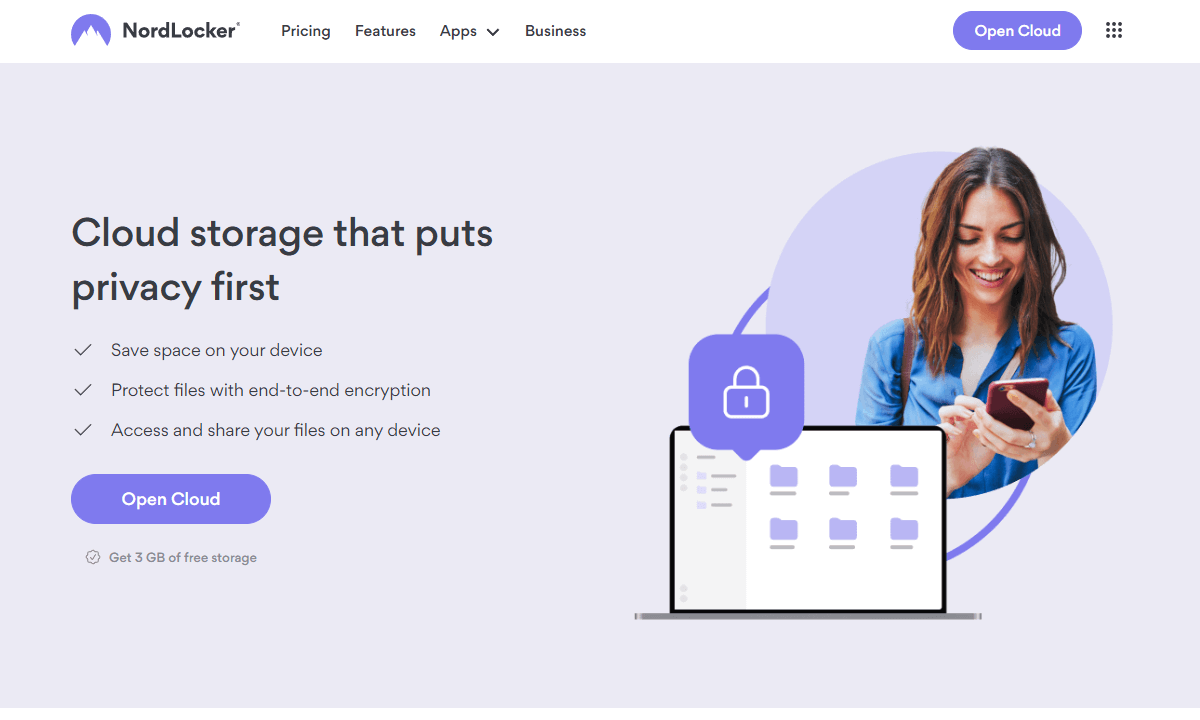
NordLocker is made by the people behind NordVPN, so it packs serious privacy into secure file storage. When you need auto-encryption before sending files online, this tool just works with no fuss.
Why I Chose NordLocker
I picked NordLocker since it mixes local security with online backup. Lots of folks rely on Dropbox or Google Drive, but stress over their data being exposed on remote servers. With NordLocker, your files are encrypted before they leave your device with client-side encryption, meaning NordLocker can’t ever access your files.
The interface feels way smoother than your average encryption tool, which often look like they’re designed by engineers who think “user experience” just means the software doesn’t crash. But NordLocker is thoughtfully designed to make it easy to use.
My Experience With NordLocker: Hands-On Performance
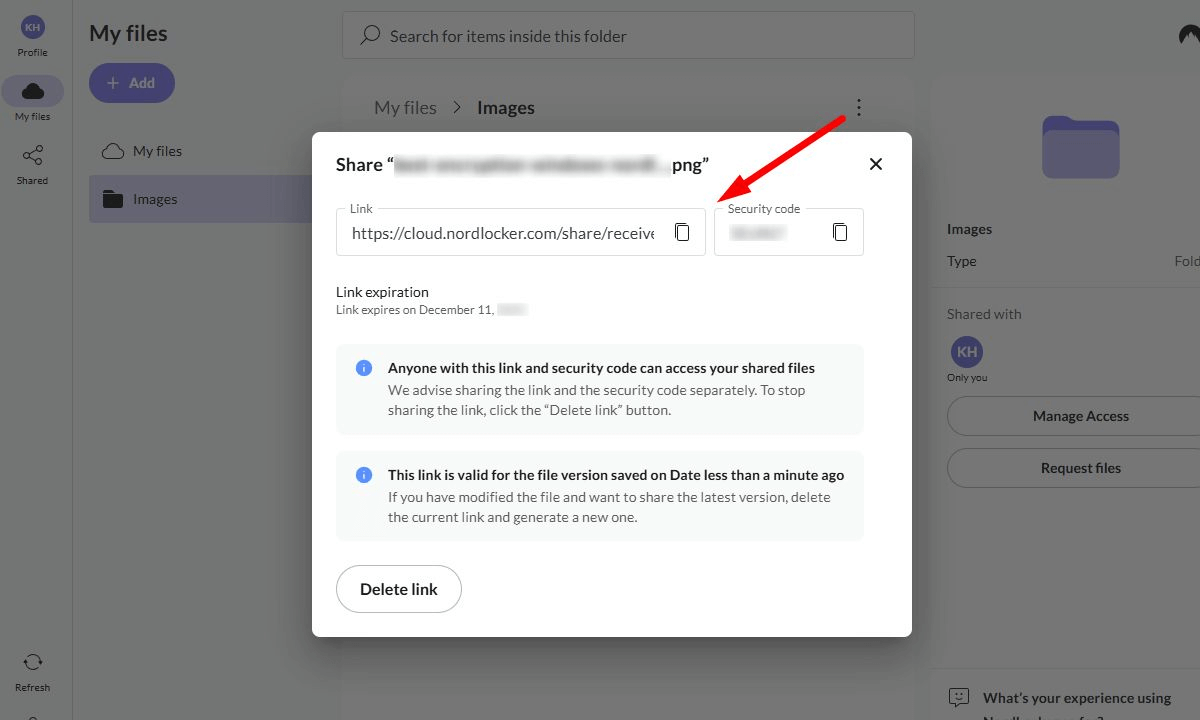
Setting up NordLocker only took me around two minutes. I signed up in my browser and began dropping files into secure vaults. Encryption didn’t slow my device down much, suggesting minimal overhead during the process. The real bottleneck was my 20Mbps upload speed, not NordLocker’s encryption.
You can open files in your browser and download them to your device or create sharing links if you need to send files to others, even on the free version. This kind of functionality isn’t something you always see on free software.
NordLocker Pricing and Value
NordLocker gives you 3GB for free, after that it’s $2.99 monthly if you want 500GB or $6.99 a month for 2TB. While this lines up well against secure options such as Tresorit, regular ones like Google Drive cost less. Security comes at a price, but it feels reasonable.
2. VeraCrypt — Best Free Full-Disk Encryption Software
Stats:
- Best price: Free
- Money-back guarantee: N/A
- Website: www.veracrypt.io
- Cross-platform support
- Completely free & open-source
- Works on Windows 10 Home Edition
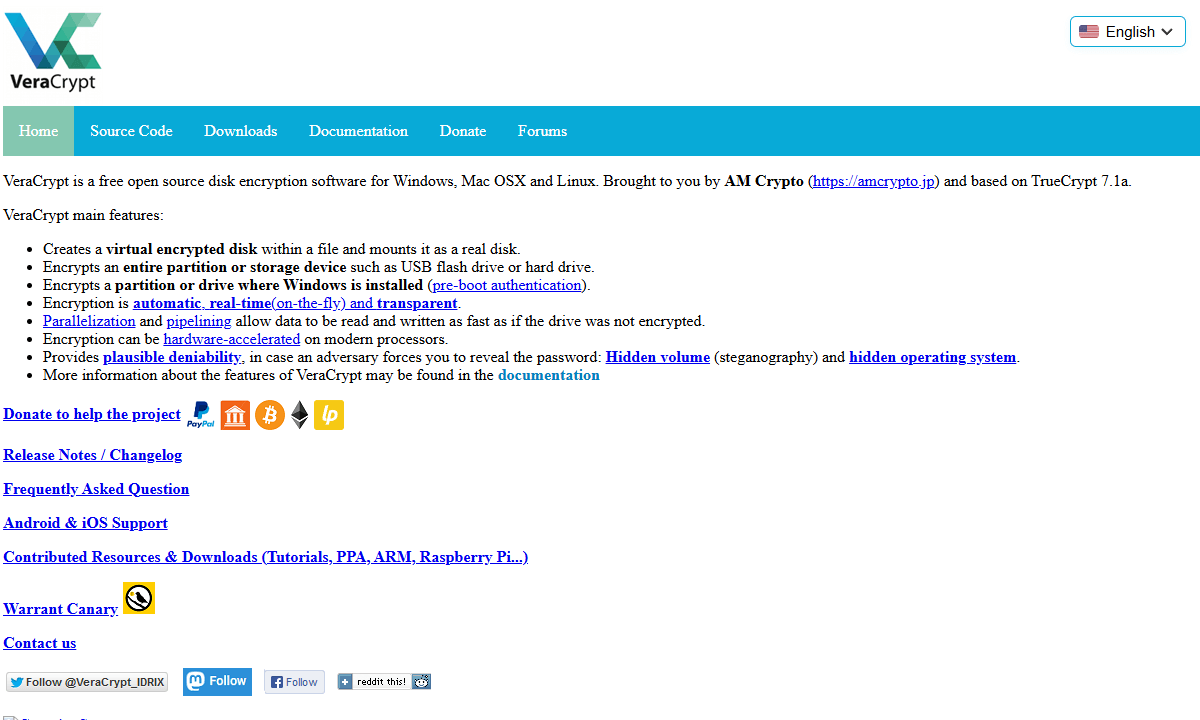
- Interface looks like it time-traveled from 1995
- Requires technical knowledge to use effectively
VeraCrypt is a solid pick for free encryption on Windows 10, especially if upgrading isn’t an option right now. It came from TrueCrypt, which doesn’t get updates anymore, but keeps its strong data protection features. On top of that, it patches flaws the original left behind.
Why I Chose VeraCrypt
VeraCrypt runs on every version of Windows 10 (yes, even Home) as opposed to BitLocker, which only works if you’ve got Pro or Enterprise. It provides total disk protection, lets you hide secret storage spaces, and make encrypted containers that act like secure flash drives.
The software has been audited by third parties and is still relied on by experts across the globe. Although the layout isn’t flashy, it handles all basics while skipping pushy upgrades you can do without.
My Experience With VeraCrypt: Hands-On Performance
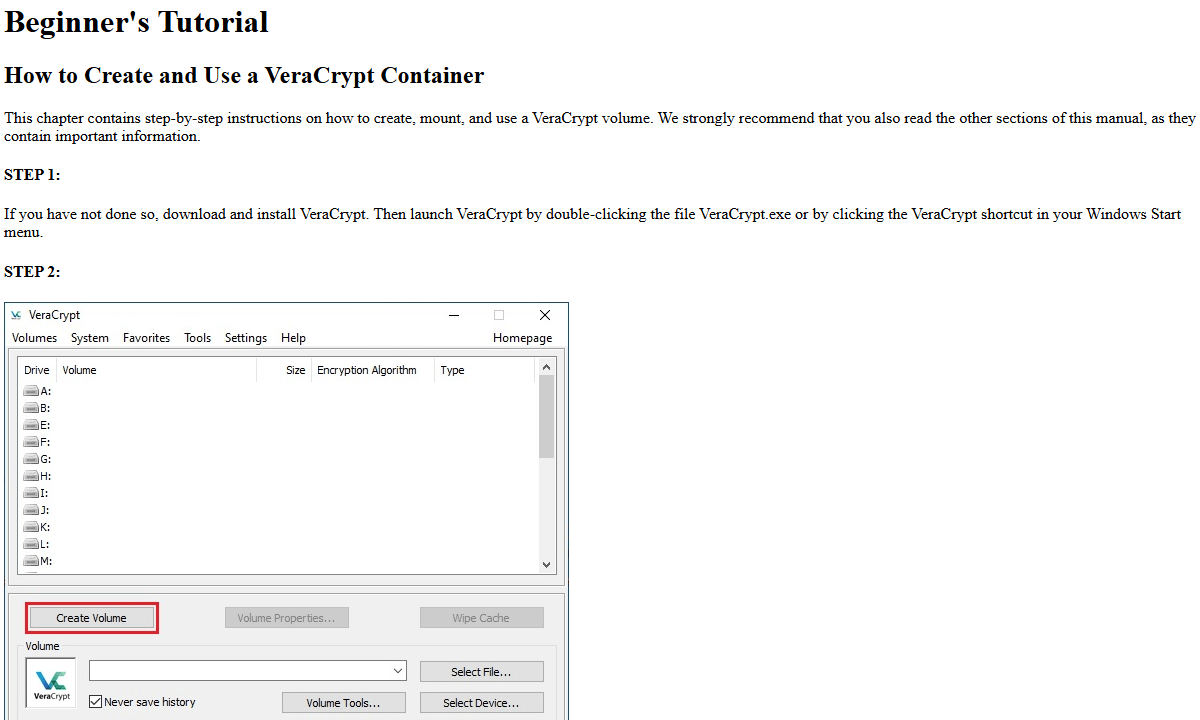
I encrypted a 500GB system drive on my test machine using VeraCrypt, which took around four hours to complete. Speed dipped a bit during the process, though it wasn’t crippling; apps opened slightly more slowly, and disk-intensive tasks took a little longer.
After encryption completed, speed changes versus a non-encrypted drive were tiny. Tests showed reading and writing dropped just 8–10%, something I barely felt day-to-day. Boot time increased slightly (around three seconds) needing password entry before Windows started up.
The real challenge showed up when I tested fake drive crashes. During encryption, I yanked the power cable (don’t try this at home) and VeraCrypt didn’t flinch. The disk remained encrypted and bootable, with no data loss.
VeraCrypt Pricing and Value
VeraCrypt costs nothing: no sneaky charges, no upgrades needed. Get it once, run it whenever, and skip the billing. It beats pricey apps that barely do more, especially when the most important thing is securely encrypting your data.
3. BitLocker — Best Built-in Encryption for Windows 10 Pro
Stats:
- Best price: Included with Windows 10 Pro/Enterprise
- Money-back guarantee: N/A
- Website: microsoft.com
- Minimal performance impact
- Native to Windows 10 Pro & Enterprise
- Not available for Windows 10 Home
- Closed-source with no independent audits
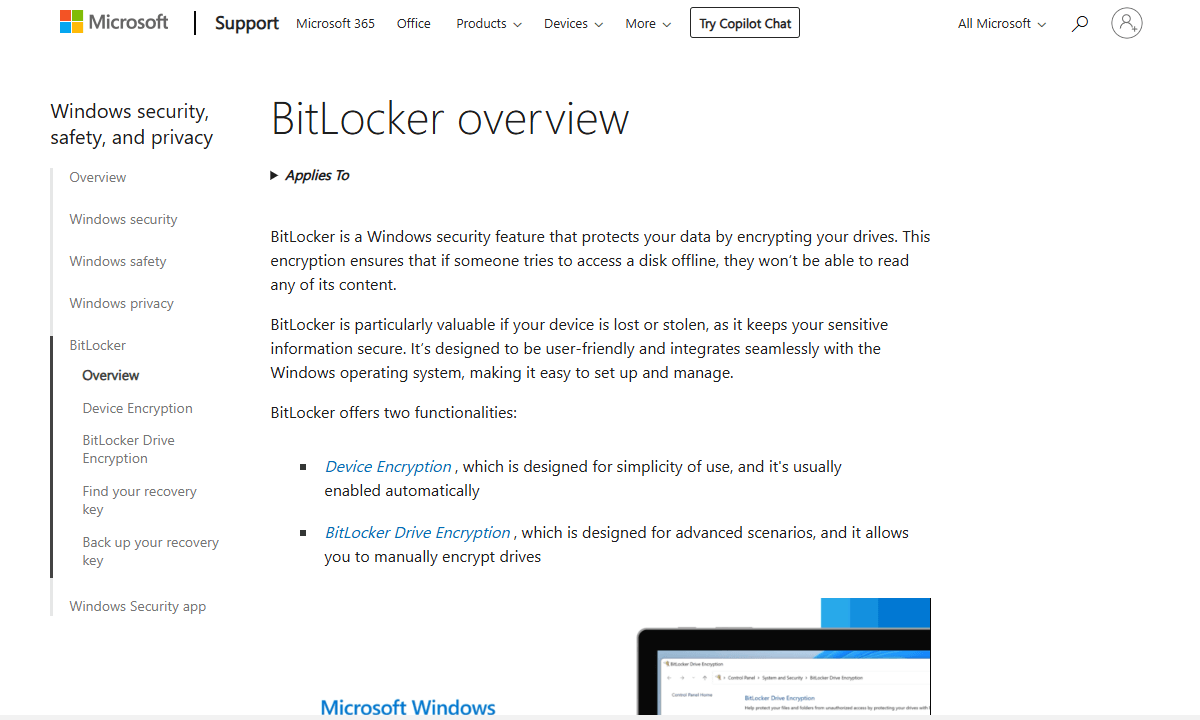
BitLocker is how Microsoft handles disk encryption; if you’re using Windows 10 Pro or Enterprise, it’s already there and just needs turning on. Once set up, it encrypts everything without making a fuss, running silently in the background.
Why I Chose BitLocker
I added BitLocker as lots of Windows 10 Pro users already own it yet rarely switch it on. Getting started is the easiest route, taking just a few clicks to lock down your whole drive. It’s built by Microsoft to run smoothly with zero setup, so it’s ideal for anyone wanting safety minus the hassle.
BitLocker works alongside TPM chips found in many new PCs, using physical hardware to boost protection in ways hackers can’t easily bypass.
My Experience With BitLocker: Hands-On Performance
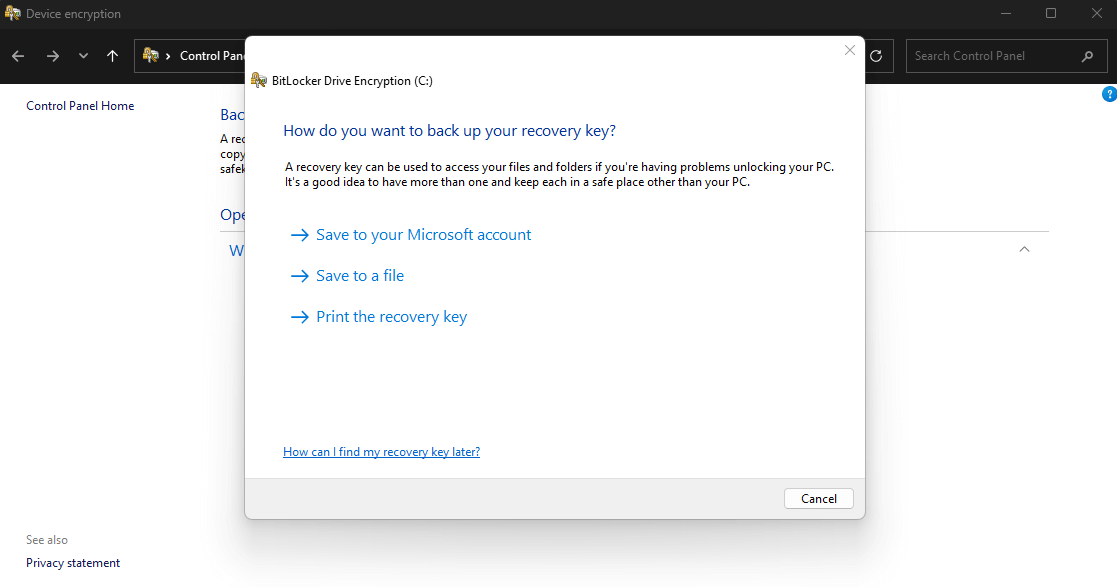
Enabling BitLocker on my Windows 10 Pro test rig lasted roughly 30 seconds. From the Start menu, pick “Turn on BitLocker,” choose a password, save the recovery key somewhere safe, and start encryption. It felt less complicated than ordering a pizza online.
While encrypting my 512GB SSD (about a two-hour job) I worked normally, no hiccups at all. Once done, Windows barely slowed down, thanks to how Microsoft built BitLocker into the system. Boot speed stayed just as quick; apps opened like before and nothing felt delayed.
The big issue with BitLocker is trust. Since Microsoft keeps the code hidden, you’ve got no way to check for secret access points. Recovery keys go straight to your Microsoft account unless you choose otherwise, which could be a privacy risk. But hey, storing them on your own device is an option.
BitLocker Pricing and Value
If you’re on Windows 10 Pro or Enterprise, BitLocker comes at no added price. Still, jumping from Home to Pro only for BitLocker means shelling out $99, making VeraCrypt’s free version a smarter pick. For businesses already using Pro licenses, going with BitLocker just makes sense.
4. AxCrypt — Best Individual File Encryption Software
Stats:
- Best price: $3.92/month
- Money-back guarantee: 30 days
- Website: www.axcrypt.net
- Simple right-click encryption
- Integrates with cloud storage services
- Doesn’t encrypt entire drives
- Needs a subscription for access to all features
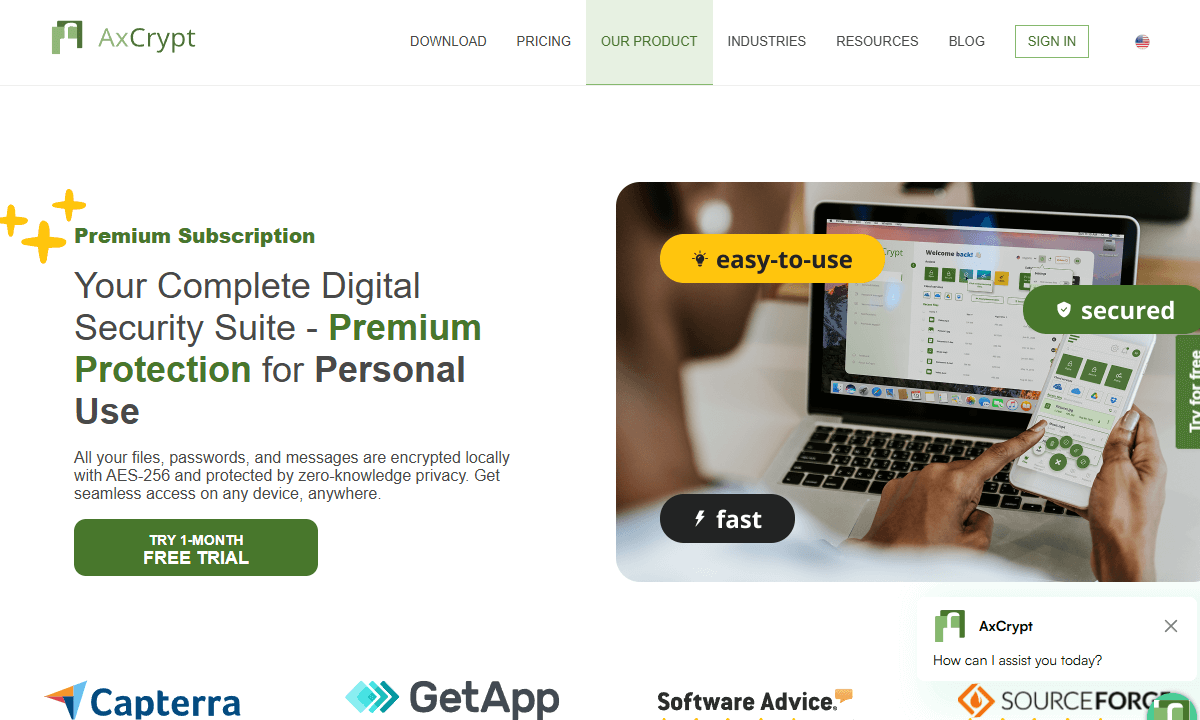
AxCrypt skips full-disk encryption, going straight to securing single files or directories. This makes sense if you only want to protect specific files rather than encrypting your entire system.
Why I Chose AxCrypt
I went with AxCrypt since heavy-duty disk encryption isn’t always necessary; perhaps you’re just securing last year’s taxes or a few sensitive work files. It works really well when you only need file-level protection. Plus, AxCrypt adds encryption options directly to Windows Explorer’s right-click menu.
The app also works smoothly with files secured in the cloud. AxCrypt automatically decrypts files when they’re opened on authorized devices while they remain securely encrypted in your cloud storage service.
My Experience With AxCrypt: Hands-On Performance
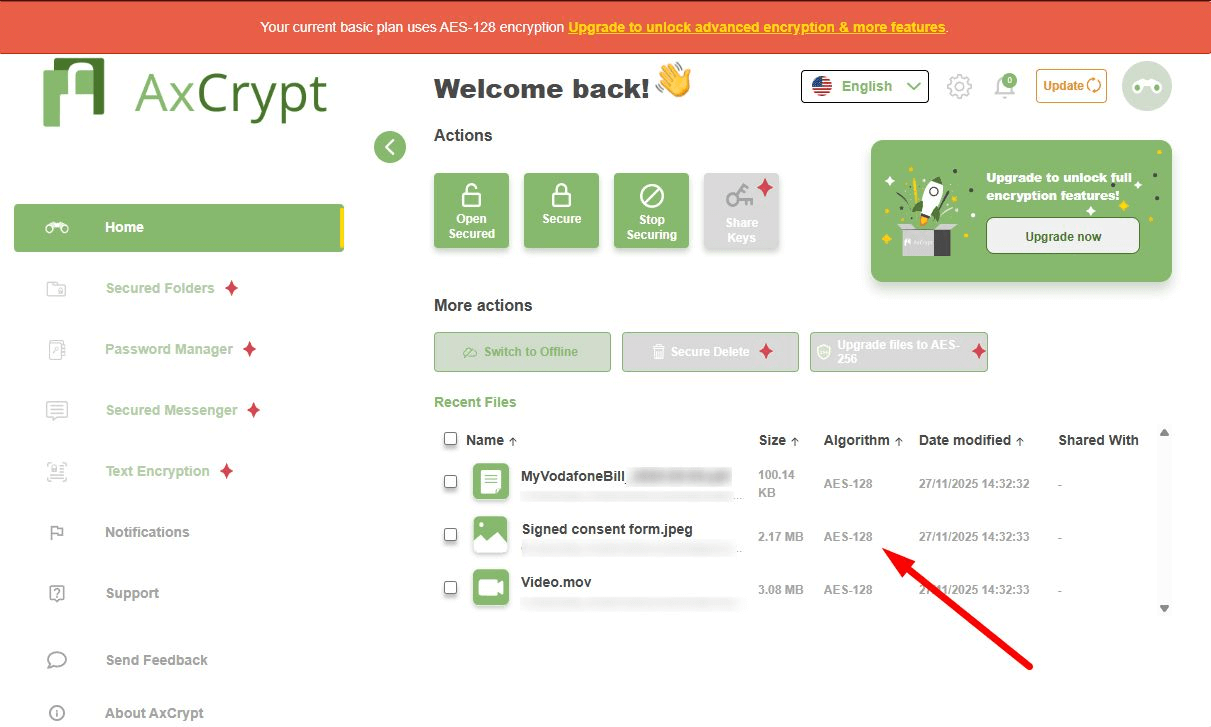
I checked how AxCrypt works by locking different kinds of files, big and small. Tiny ones (less than 10MB) were done in a flash. But when it came to heavier stuff, you could see the lag; a 2GB movie clip needed roughly 45 seconds using my SSD setup.
The file got about 0.5% bigger after encryption due to the extra data needed. I like that AxCrypt unlocks files when I click them twice, locks them again once I’m done, and stores any unencrypted copies in protected memory instead of writing them to disk.
A weird thing I found is that AxCrypt doesn’t play nicely with apps that create multiple file handles or lock files for extended periods. When using video editors, there were a few errors when opening projects locked by AxCrypt.
AxCrypt Pricing and Value
AxCrypt costs $3.92/month for the upgraded plan, giving you cloud encryption, mobile access, a secure messenger and password manager. The basic option is free but limits you local file encryption and lacks extra features. Pricewise, it’s fair when stacked up against similar software; however, some folks might dislike paying every year instead of just once.
5. Symantec Encryption — Best Enterprise Encryption Solution
Stats:
- Best price: Custom enterprise pricing
- Money-back guarantee: None (prorated refunds)
- Website: broadcom.com/symantec
- Comprehensive compliance reporting
- Centralized management for thousands of devices
- Expensive for small businesses
- Complex deployment needs dedicated IT resources
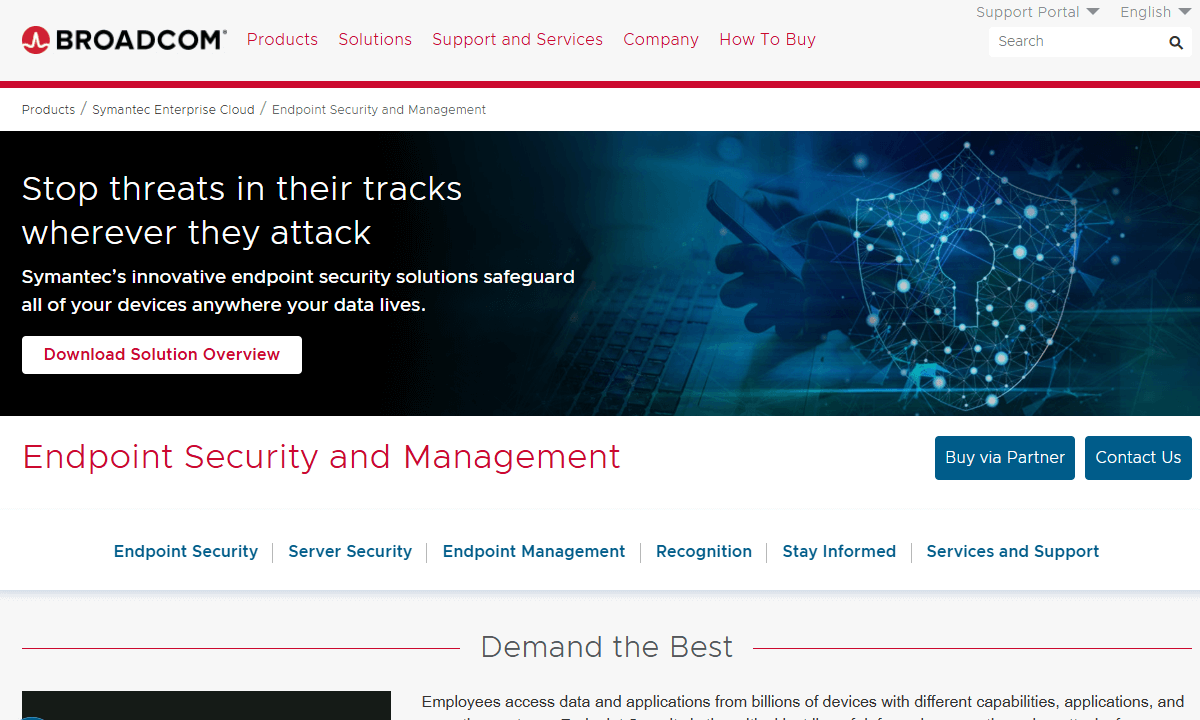
Symantec Encryption, now owned by Broadcom, is ideal for companies needing full disk encryption across many Windows 10 machines using one control center. It’s not useful for individuals, but critical for large organizations.
Why I Chose Symantec
I added Symantec since work encryption demands aren’t like private ones. IT teams must apply security rules, oversee unlock codes from afar, pull up audit logs, and even deal with stolen staff laptops while keeping corporate info safe.
Symantec’s been tackling corporate security for years; its tools are solid and proven under real pressure. When rules like HIPAA, GDPR, or PCI-DSS apply to your work, this platform delivers clear logs and tight safeguards. As staying compliant isn’t optional, the system builds checks right in.
My Experience With Symantec: Hands-On Performance
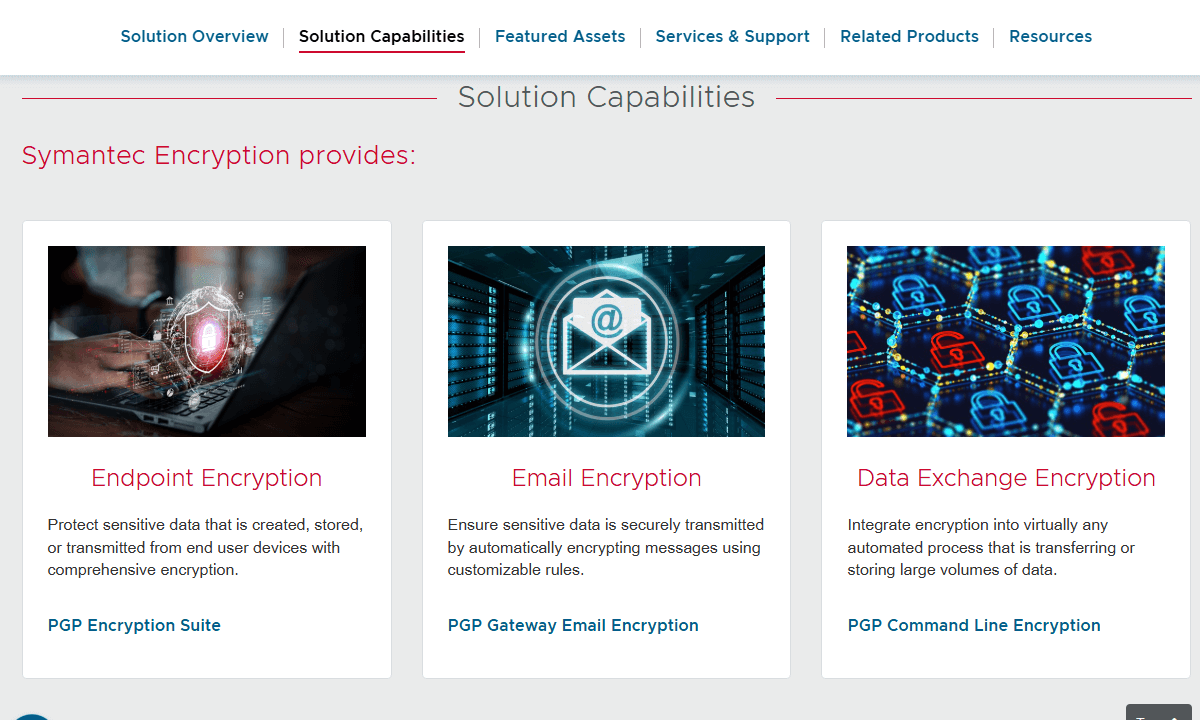
I set up Symantec across a tiny network with 10 Windows 10 devices. Putting it live meant getting management servers running, setting up rules, making encryption groups, and sending the client out to each machine. With guides on-hand, it took me around four hours; someone who’s done this before might finish quicker.
After setup, Symantec ran quietly in the background. Devices were encrypted using group rules, so people had to log in before Windows started up. Since recovery keys were managed from one spot, pulling files off any protected device was possible without asking the owner.
Speed stayed about the same, just like with Bitlocker. Instead of custom tools, Symantec taps into Windows’ own encryption features when it can, so the CPU or dedicated chips handle most work.
Symantec Pricing and Value
Symantec doesn’t display its Enterprise pricing, so you’ll have to reach out to support for a quote. From what’s been shared online, costs land between $40 and $60 yearly for each device, with volume discounts for larger organizations. That price tag hits hard for smaller firms, but feels fairer for big companies wanting strong control tools.
6. Tresorit — Best Zero-Knowledge Cloud Encryption
Stats:
- Best price: $4.75/month
- Money-back guarantee: 7 days
- Website: www.tresorit.com
- End-to-end encryption for all files
- Swiss-based with strong privacy laws
- Pricey compared to alternatives
- Learning curve for advanced features
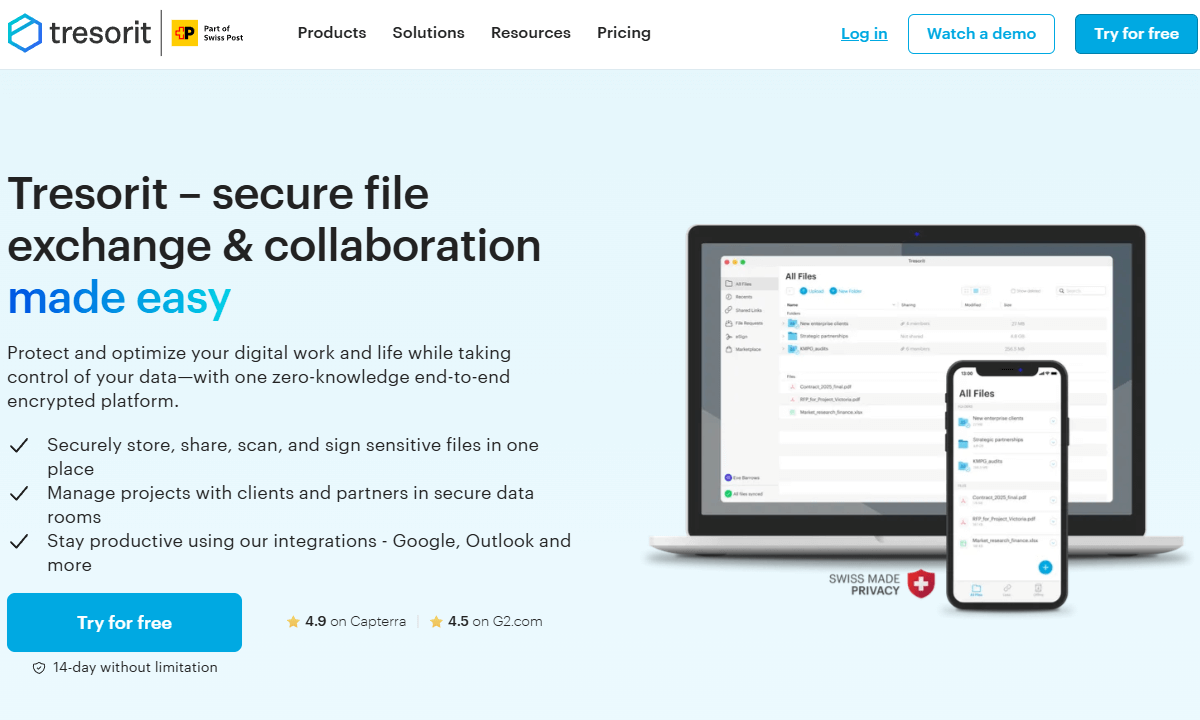
Tresorit keeps your data safe using client-side encryption; no one can see the contents of your files, not even the Tresorit team. Based in Switzerland, you benefit from strict local privacy laws that guard user info tightly.
Why I Chose Tresorit
I went with Tresorit since it’s secure but still pretty easy to use. You can share files safely with teammates, set expiration dates on links and keep a tight grip on your info, all while getting the perks of online storage.
The Swiss legal system carries weight. While firms based in the U.S. fall under surveillance efforts like NSA sweeps or secret FISA demands (often bundled with silence clauses), Swiss services don’t answer to those rules.
My Experience With Tresorit: Hands-On Performance
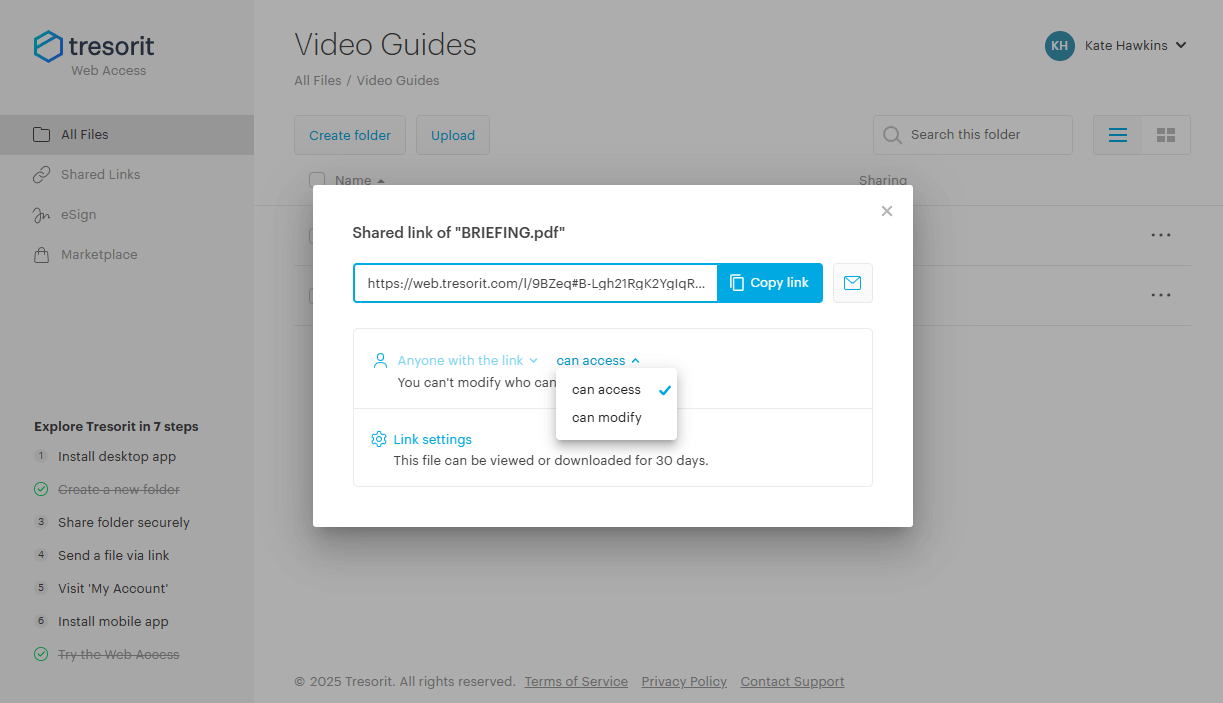
I set up a Tresorit account, then added about 50GB of different files to see how it works in daily use. The first upload dragged on for nearly a full day using my 20Mbps upload speeds, but later syncs were snappy, only uploading items that actually changed.
The client-side encryption ensured Tresorit had zero insight into my uploads; no automatic file checks, no flagging of material, and no sneaky AI dissecting my info for ad tweaks. What I stored stayed mine alone.
I sent an encrypted file to a coworker, who got in using the code I gave them separately. Files remained secure while stored on Tresorit’s system or moving online, only decrypting when arriving on our devices.
Tresorit Pricing and Value
Tresorit costs $4.75 monthly for 50GB if paid yearly, which is on par with similar encrypted services. You can try any of their plans for free for 14 days, which is great for testing. You can also claim a refund within seven days of purchase if you find it doesn’t fit your needs.
7. Cryptomator — Best Open-Source Cloud Encryption
Stats:
- Best price: Free
- Money-back guarantee: N/A
- Website: cryptomator.org
- Free & open-source
- Works with any cloud storage provider
- Manual setup required
- No built-in cloud storage
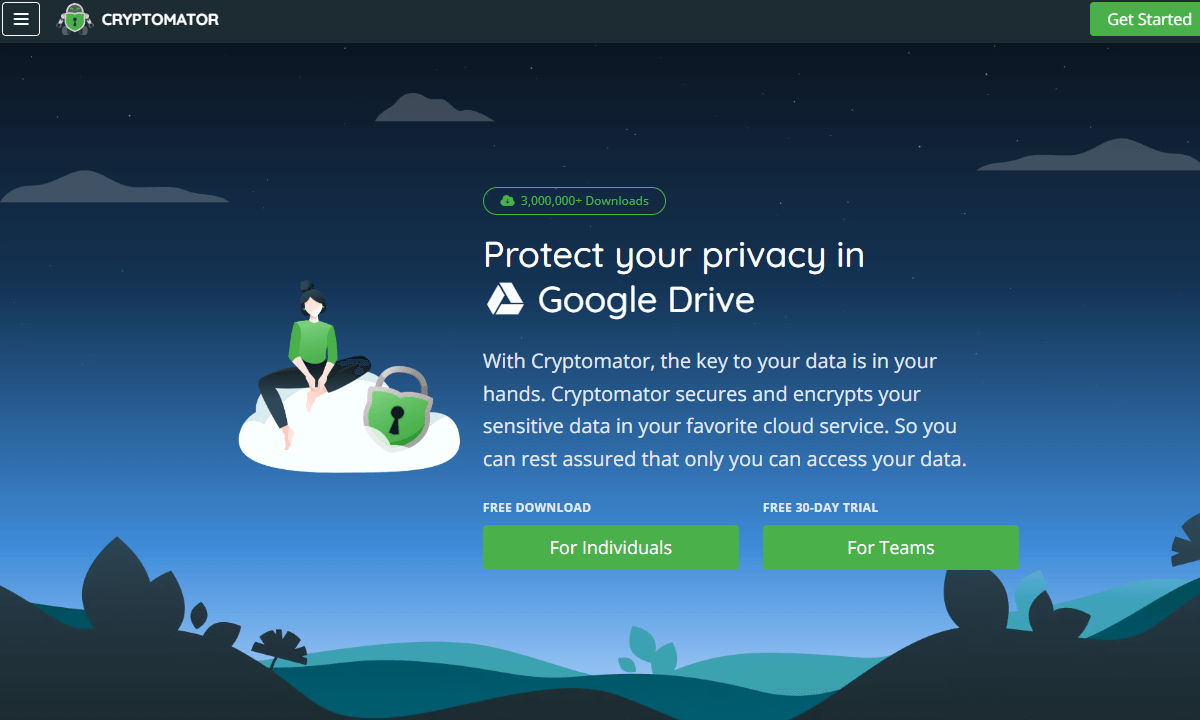
Cryptomator keeps your files safe in the cloud by locking them inside secure vaults within your usual folders. Instead of storing data openly, it encrypts everything so only you can open it. Whether you’re using Dropbox, Google Drive, or another service, it works straight out of the box. No extra setup needed; just pick a folder and turn it into a protected space.
Why I Chose Cryptomator
I added Cryptomator since it tackles one clear issue: using low-cost or free cloud storage without built-in encryption but needing to keep data secure. It sets up encrypted vaults right in your cloud folders, securing files before they upload.
The code being open-source lets experts check how the encryption works, it’s been independently reviewed multiple times. Plus, it uses standard, well-tested encryption algorithms that are known for their security.
My Experience With Cryptomator: Hands-On Performance
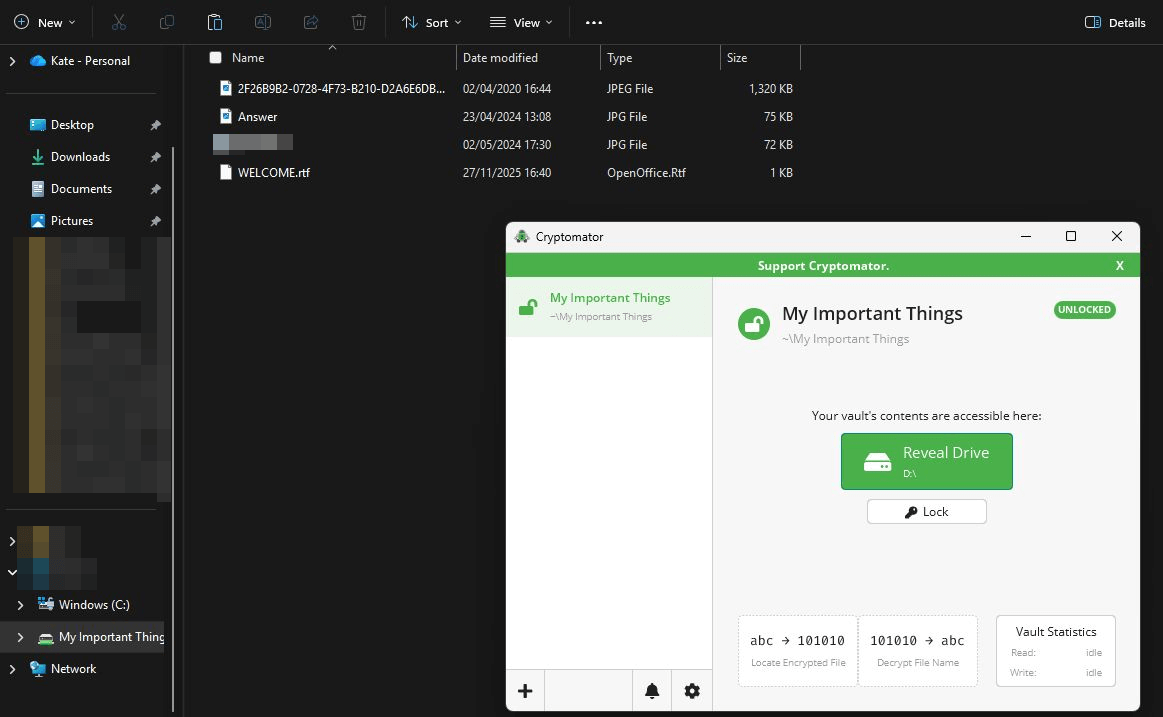
I built a Cryptomator vault to sync with my Google Drive, then uploaded 20GB of data into it. Every file got its own encryption, and it created an encrypted folder structure that looked like gibberish in Drive’s web interface.
The vault showed up like any regular drive on my Windows 10 PC. Moving files inside was as easy as dragging them over, and editing documents worked just fine. Cryptomator took care of encrypting and decrypting in the background without impacting my PC performance.
The speed dropped a little when handling big files. Moving a 4GB video into the vault needed around a minute just to encrypt, and more waiting while Dropbox uploaded the file. Tiny files under 10MB were secured right away.
Cryptomator Pricing and Value
Cryptomator is free, but the developers welcome donations for support. There are no restrictions on the Windows version, but if you want access to the mobile apps, it’s a one-time $10 fee; fair for ongoing development.
How to Use Encryption Software on Windows 10
Encryption might seem tricky, but today’s software makes it super easy. This is how you begin encrypting files on Windows 10, no matter which app you choose.
1. Back Up Your Data Before Encrypting
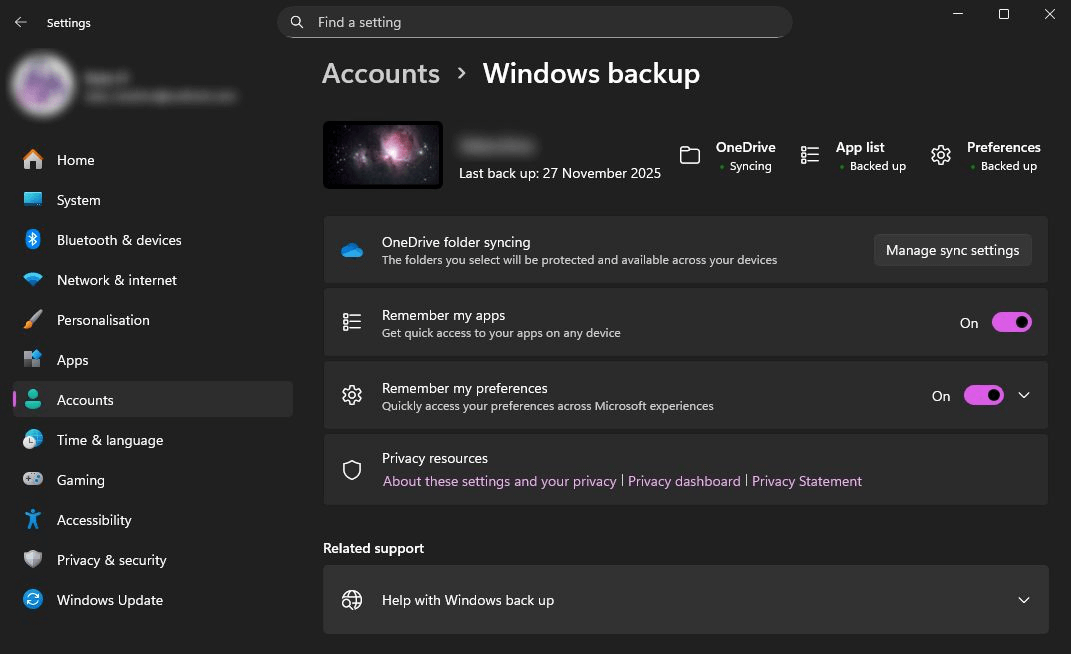
Create a complete backup of your crucial files prior to any encoding. Even though today’s encryption tools work well, computers can crash mid-process, storage devices can stop working, and people can misplace their passcodes.
Get an external hard drive or online storage to save everything. Try restoring a few files to check if it actually worked. Once you’re sure the copy is good, you can start encrypting.
2. Choose Between Full-Disk and File-Level Encryption
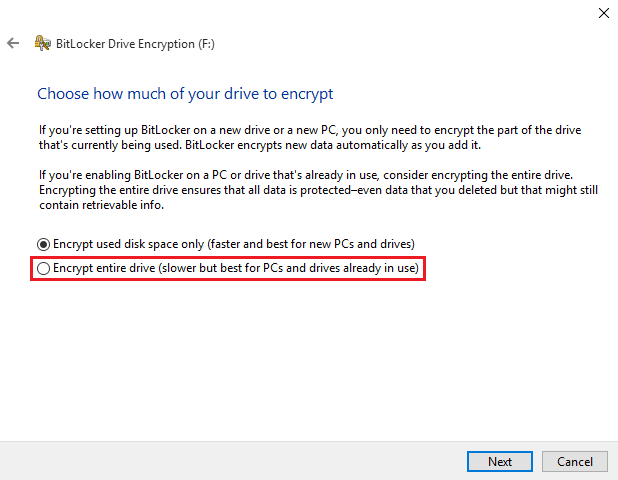
Most folks should use full-disk encryption with something like VeraCrypt or BitLocker. This setup guards everything, so you don’t have to worry about picking individual files.
Full-disk setup protects everything: system data, temporary fragments, even leftover chunks of erased stuff. File-level encryption is more flexible but demands consistency so you don’t forget which items need protection.
3. Create a Strong Encryption Password
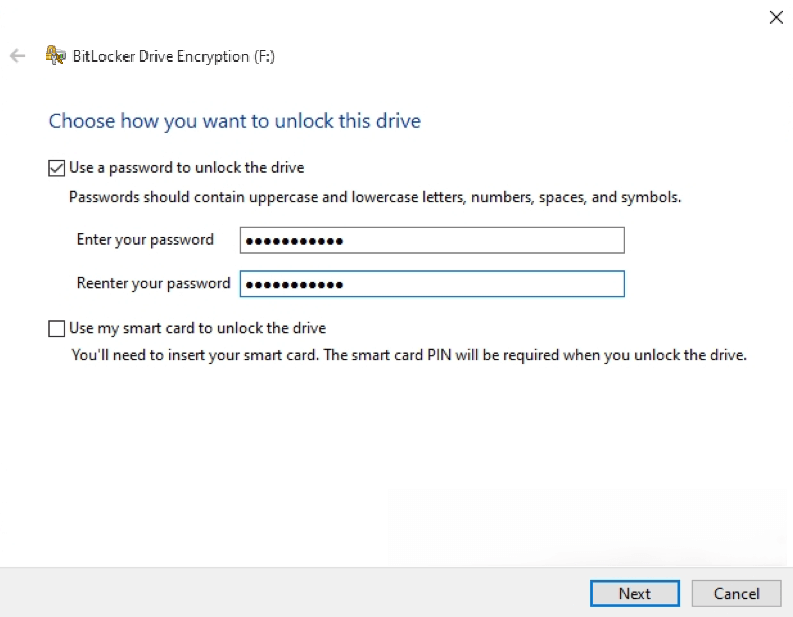
Your encryption is only as good as your password. Try 12+ characters with a mix of capital and lower case letters, numbers, and symbols. Even better, pick a phrase like “cloud-tiger-lamp-desk-99” that’s tough to brute-force but sticks in your head.
Don’t reuse passwords from other sites, as a leak online might let hackers unlock your drive. Keep the encryption password secure by adding it to a password manager or writing it down and keeping it in a safe physical space.
4. Save Your Recovery Key Securely
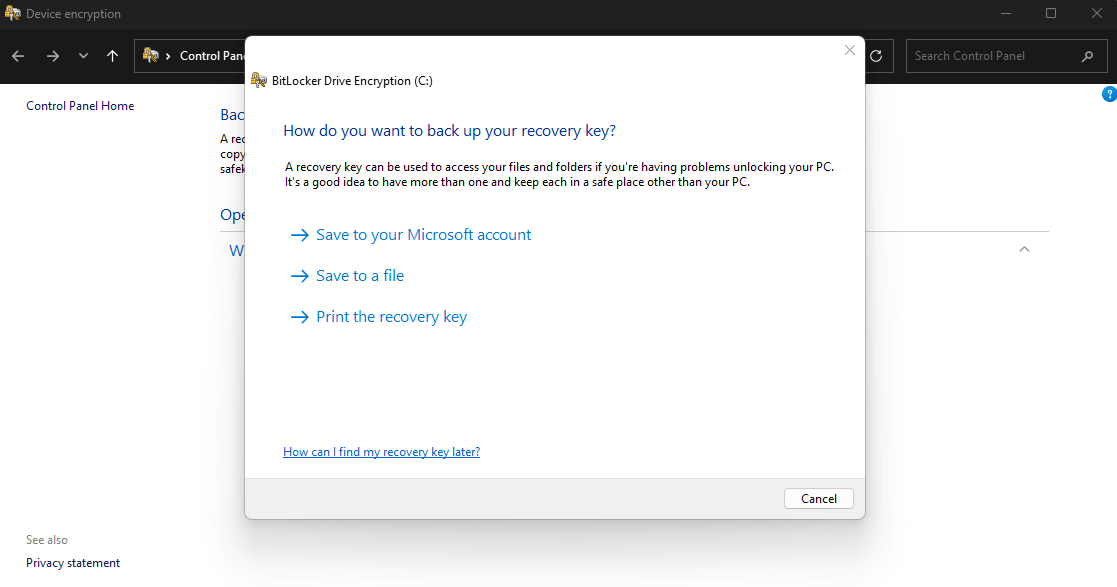
Each encryption app gives you a backup code if you lose your login. Stash that code somewhere secure but separate from your encrypted device. I keep mine in a password manager and also print a copy stored in a safe deposit box.
Keep your recovery key off the encrypted device. That’s like stashing a front door key beneath the welcome mat.
5. Monitor Encryption Performance
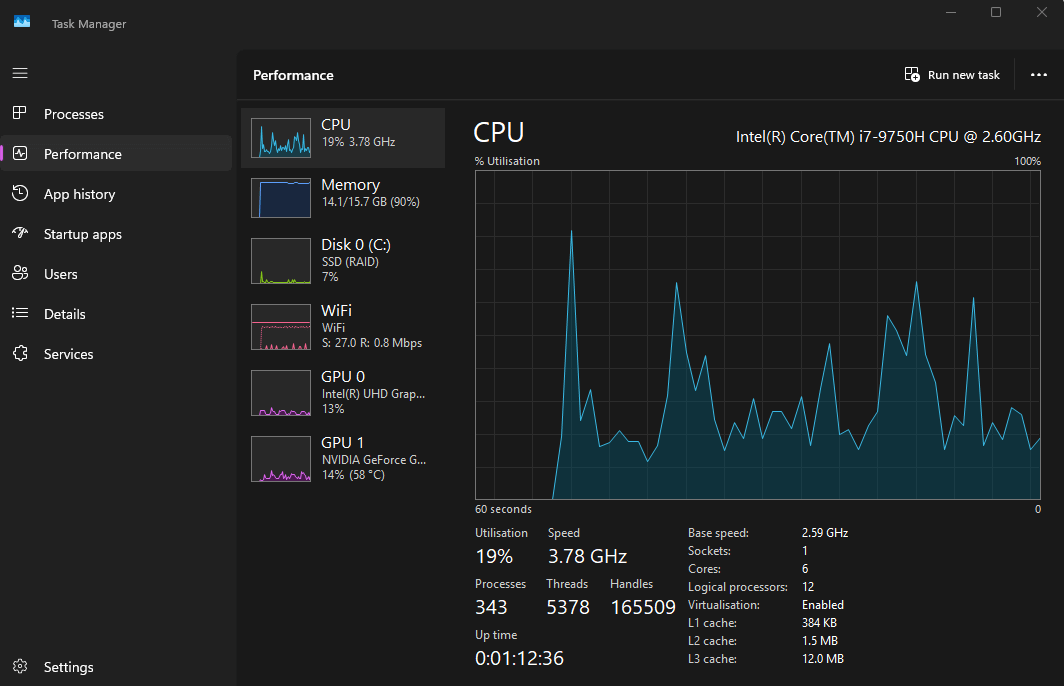
Once you turn on encryption, keep an eye on how your device runs over the next couple of days. Some encryption apps demand a lot from the processor, so they might make older machines sluggish or reduce battery life more quickly.
If things slow down a lot, try changing the encryption options or switch to another app better suited to your device.
Common Encryption Mistakes to Avoid
I’ve seen users mess up encryption again and again, usually ending up putting their data at risk. Check out these frequent errors, plus ways to skip the traps.
- Weak passwords: Easy-to-guess passwords like “password123” make encrypting data pointless. Go for truly mixed-up combos or string together odd word pairs that don’t go together.
- Storing encryption keys incorrectly: Keep those recovery codes apart from the device they unlock, preferably spread across more than one safe place.
- Ignoring full-disk encryption: Saving only your Docs means temporary files, browser traces, or system logs stay open, and these can hold secret info too. Go with whole-drive protection instead.
- Relying on outdated software: Windows 10 doesn’t get security fixes anymore, so strong encryption matters more. Stay safe by updating your encryption tools, or switch to Windows 11 instead, since it still gets regular protection updates.
- Turning off safety checks: Pre-boot authentication adds extra protection. Don’t disable it because it adds five seconds to your startup time; those five seconds could stop someone from accessing your entire life.
- Forgetting to encrypt removable media: If your laptop is encrypted but you store files on an unsecured USB stick, that security’s pointless. Use the same protection rules on all of your devices.
Conclusion
After trying out seven encryption apps on Windows 10, NordLocker is the best and easiest option. VeraCrypt also stands out; it’s secure, free, and works across many systems. For folks using Windows 10 Pro or Enterprise, BitLocker makes things easier instead.
What encryption tool do you run on Windows 10? Have you noticed a slowdown when using it? I’d love to hear what prompted you to start encrypting your files – let me know in the comments, and thank you for reading.
FAQ: Windows Encryption
Does Windows 10 Have Built-in Encryption Software?
Yes, Windows 10 has built-in encryption software. BitLocker comes with Windows 10 Pro along with Enterprise, but the Home version doesn’t offer that feature at all. Instead, folks using Home must use apps like NordLocker or VeraCrypt.Is BitLocker or VeraCrypt Better?
It depends. BitLocker is simpler to set up and integrates well with Windows. VeraCrypt counters with tougher protection and runs well on Windows 10 Home. Go for Bitlocker if ease matters most, pick VeraCrypt when safety and saving money take priority.Is BitLocker Free?
BitLocker is free if your PC runs Windows 10 Pro or Enterprise; however, switching from Home to Pro will set you back $99. If you’re stuck with Windows 10 Home and want encryption without paying, go for VeraCrypt instead.
Leave a Reply