The Best Privacy Chrome Extension in 2026: Block Ads, Viruses & Trackers
- Table of Contents
- How to Add Chrome Extensions for Privacy and Security
- What Is a Chrome Extension for Privacy?
- The Best Chrome Security Extensions Compared
- 1. NordVPN -- Best Chrome Antivirus Software and VPN Protection
- 2. uBlock Origin Lite -- Best Overall Privacy Chrome Extension
- 3. Privacy Badger -- Best Tracker-Blocking Extension
- 4. Ghostery -- Best for Seeing Who's Tracking You
- 5. Global Privacy Control -- Sends Automatic Opt-Out Requests
- 6. Total Adblock -- Best Chrome Adblocker for YouTube
- 7. Bitdefender Traffic Light -- Best Chrome Antivirus Software
- 8. DuckDuckGo Privacy Essentials -- Combined Privacy Protection
- 9. Adblock Plus -- Classic Chrome Adblocker (With Caveats)
- 10. Disconnect -- Privacy-Focused Tracker Blocker
- Conclusion
- FAQ: Best Chrome Extensions for Privacy

Quick Summary: Best Chrome Privacy Extensions
uBlock Origin Lite offers the best overall protection, and it actually works with Chrome’s new restrictions. Best of all, it’s completely free to use.
- NordVPN – A VPN that hides your IP and secures web activity through encryption
- uBlock Origin Lite – Top pick for blocking ads and trackers on Chrome
- Privacy Badger – Learns and adapts to stop hidden trackers automatically
- Ghostery – Stops online trackers, plus gives you a clear view of your privacy settings
- Global Privacy Control – Sends automatic opt-out requests as you browse


Putting privacy add-ons on Chrome is like locking your door once someone shady already took a copy of your key. You and I know Google doesn’t care much about keeping you private (it’s not exactly one of the best browsers for privacy) but these extensions help cut down how much it can look at.
The issue? Chrome’s latest update (Manifest V3) broke nearly all solid ad blockers. For a fortnight, I tried every add-on promising privacy fixes; turns out, plenty are just flashy nonsense. Tools that worked earlier this year barely do anything now, and some now want way more access than they should. Fortunately, some are still working properly.
How to Add Chrome Extensions for Privacy and Security
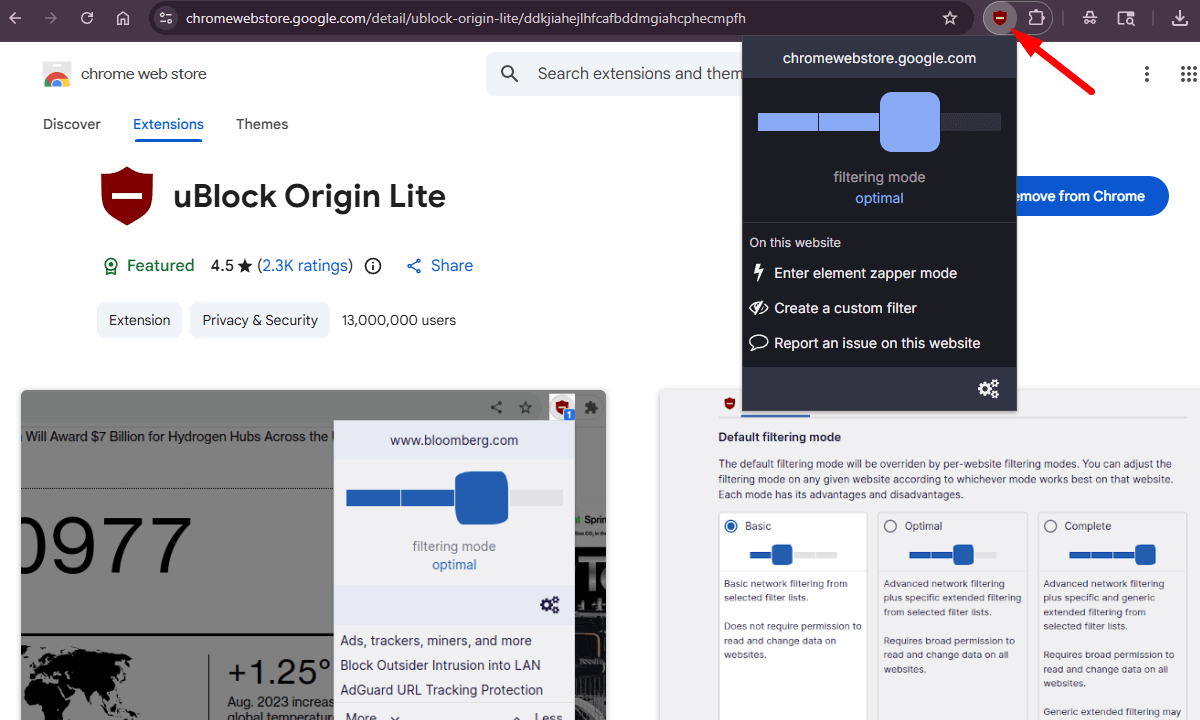
Adding extensions is pretty easy, but here’s a guide if you haven’t used it before. In this example, I’m using uBlock Origin Lite, but the process is the same for any extension.
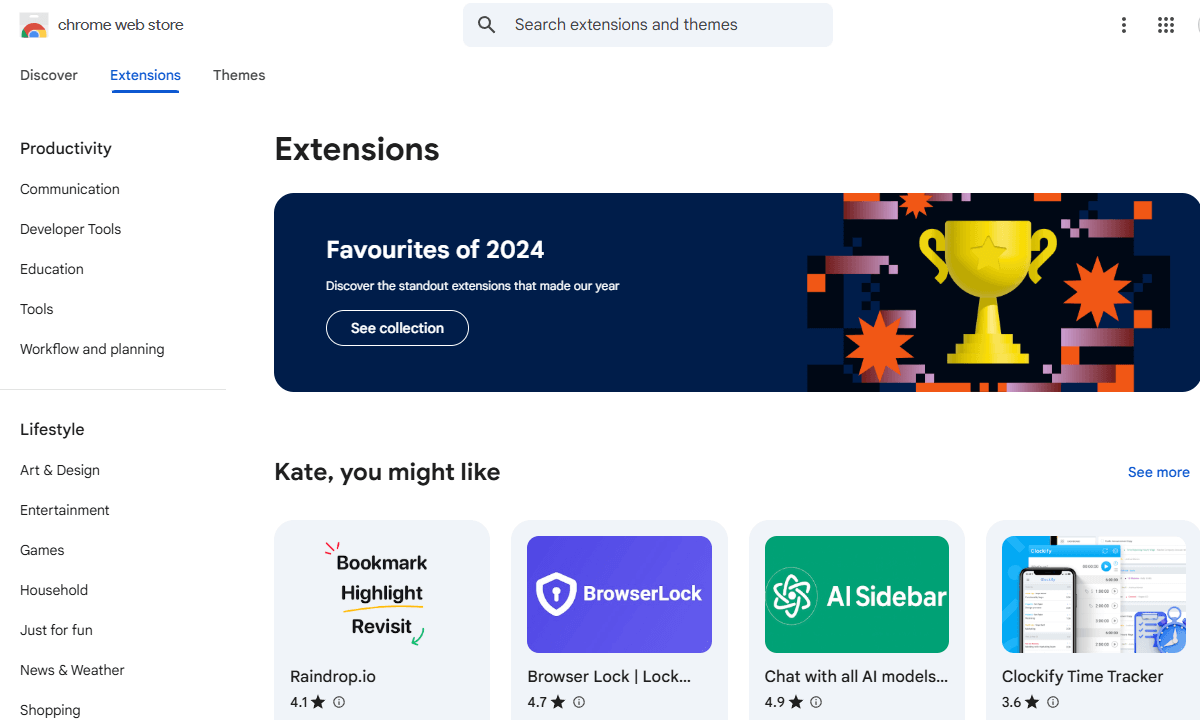
1. Open the Chrome Web Store
Head over to chromewebstore.google.com. You’ve got to log in with a Google account, since it likes knowing what privacy tools you’re adding. Yeah, I see the contradiction too.
2. Search for the Extension
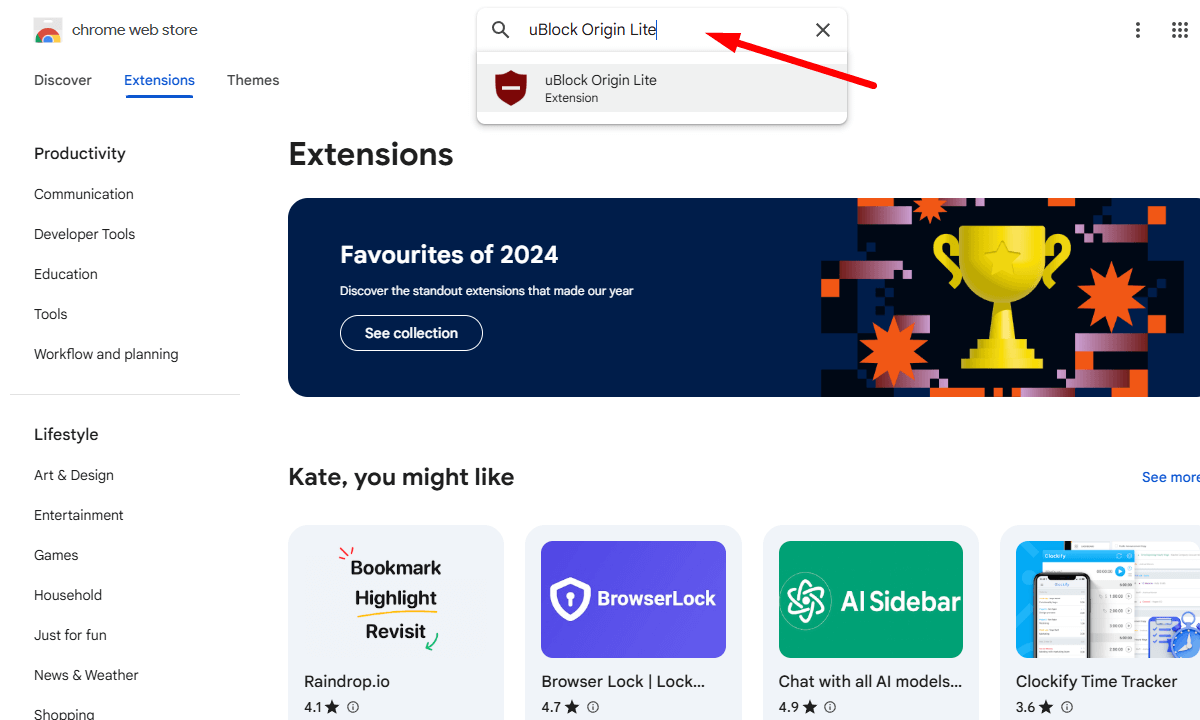
Type the add-on’s name in the box up top on the left. Check carefully: you want the real one, not a fake copy. Lots of shady versions pop up, often with names that look almost identical.
Before you add anything, check the developer name and the number of users. If an add-on says it’s got 10 million fans but appeared just days ago, that should raise doubts right away.
3. Review Permissions and Install
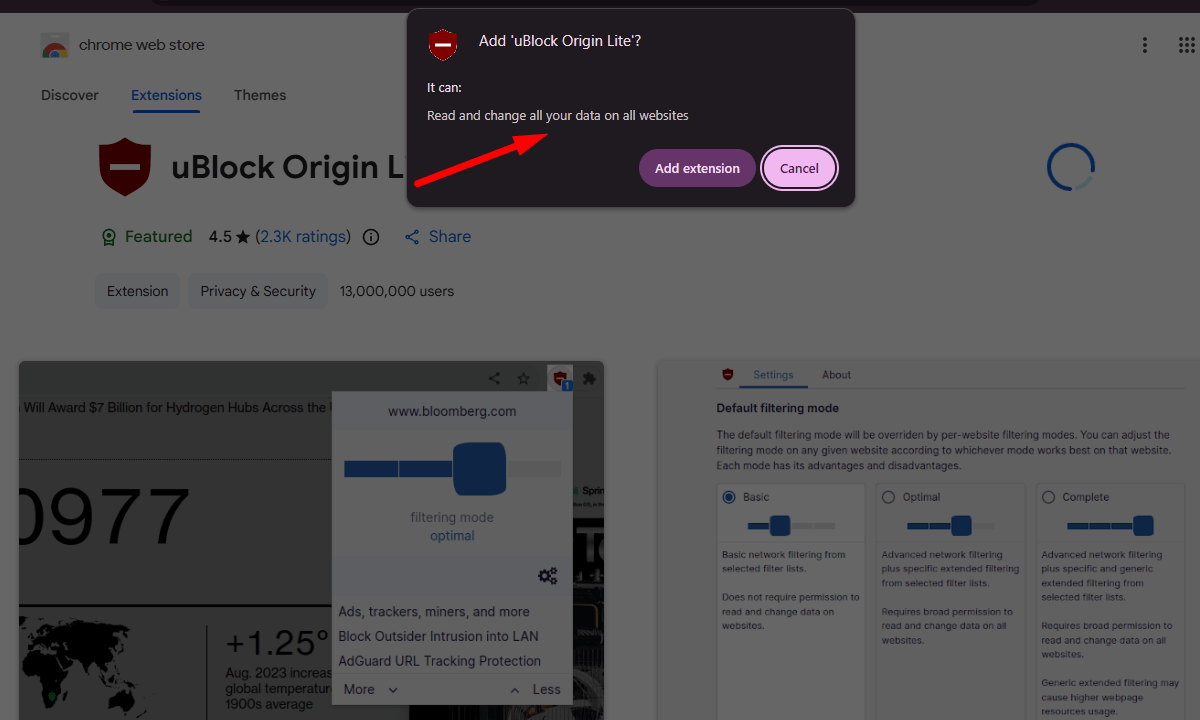
Choose the add-on you like and tap “Add to Chrome.” You’ll see a box listing the permissions it needs to work. If an ad blocker asks for camera access, chances are, something’s off.
Tap “Add extension” to confirm. Right after, you’ll spot the icon in your toolbar.
4. Confirm Your Extension
While many add-ons ask for a bit of setup first, some just run straight away. Pin the icon to your toolbar by tapping the jigsaw shape, then hit the little pin beside its label.
Some add-ons don’t need any daily fuss, which is perfect since my toolbar’s cluttered enough.
What Is a Chrome Extension for Privacy?
Chrome add-ons focused on privacy work right in your browser; they shut down trackers, block ads, and prevent malware, so sites don’t follow you around like nosy strangers.
Imagine these tools like club guards for your web browser. Instead of letting just anyone through, they scan visitors at the door, turning away shady ones lurking behind the scenes. Some extensions block annoying pop-ups, others take aim at hidden spies collecting your data, and the best ones do both while also protecting against malicious websites.
The thing is, add-ons might actually mess with your privacy as you’re giving them permission to view and potentially modify what you do online. That’s why it’s smarter to pick extensions made by known creators instead of grabbing the top result blindly.
Are Chrome Extensions Safe?
Some Chrome extensions are safe, but many aren’t. Think about it like trusting strangers; it depends on who they are. Extensions made by known creators, with lots of users and regular updates and probably fine. But ones tossed together by someone named “TotallyNotAScammer2025,” sitting at 47 downloads? Yeah, skip those.
During my research, one thing was clear: some legit add-ons end up in shady hands through sales you wouldn’t expect. These new owners can slip tracking code into updates later on. This has happened with several once-reputable add-ons in the past few years.
Stick to add-ons from groups you recognize, like the Electronic Frontier Foundation. Look at what users are saying lately, especially if something feels off. See whether it gets frequent updates. Skip any tool asking for access it shouldn’t require.
The Best Chrome Security Extensions Compared
| Chrome extension: | What it does |
|---|---|
| uBlock Origin Lite | Blocks ads and trackers using efficient filtering lists compatible with Chrome’s new restrictions |
| Privacy Badger | Learns which domains track you across sites and automatically blocks them |
| Ghostery | Identifies and blocks trackers while showing you exactly who’s following you around |
| Global Privacy Control | Sends automatic opt-out signals to websites telling them not to sell your data |
| NordVPN | Routes your browser traffic through encrypted VPN servers to hide your IP address |
| Total Adblock | Blocks advertisements across websites with customizable filtering options |
| Bitdefender TrafficLight | Scans websites for malware and phishing attempts before you visit them |
| DuckDuckGo Privacy Essentials | Combines tracker blocking with encrypted searches and privacy grade ratings |
| Adblock Plus | Long-running ad blocker with acceptable ads program for non-intrusive advertising |
| Disconnect | Blocks invisible tracking and speeds up page loads by stopping unnecessary requests |
1. NordVPN — Best Chrome Antivirus Software and VPN Protection
Stats:
- Best price: From $2.99 per month
- Money-back guarantee: 30 days
- Website: www.nordvpn.com
- Encrypts browser traffic & hides your IP
- Works independently from desktop app
- Threat Protection blocks malicious sites & ads
- No free version
- Slower browsing when using distant servers
NordVPN’s Chrome add-on acts like a proxy, scrambling your browsing data and masking your IP, while cutting down on online snooping. Unlike the desktop app, only my browser was covered. Since most tracking happens in the browser, I didn’t mind that the rest of my traffic wasn’t encrypted.
I connected to an American server and was impressed by the performance; videos streamed without hiccups and website loading was only slightly slower. Threat Protection shut down some shady ads others let slip by, and its WebRTC guard made sure my actual IP stayed out of sight during tests.
Top Privacy Features:
- IP masking: Hides your true location online by sending web activity via remote servers, so sites can’t see your real IP.
- Threat Protection: Stops harmful sites, sketchy trackers and pushy ads right when you start browsing, cutting them off early through your DNS.
- WebRTC leak protection: Keeps sites from sneaking past your VPN to grab your real IP using browser vulnerabilities.
NordVPN isn’t free, so it’s not as tempting as no-cost tools. But pairing a VPN with ad blockers means better privacy plus stealth online. Since you’re paying for NordVPN anyway, go ahead and add the Chrome version. Take a look at our NordVPN review for more details.
- $2.99 per month (two-year plan + three months)
2. uBlock Origin Lite — Best Overall Privacy Chrome Extension
Stats:
- Best price: Free
- Money-back guarantee: N/A
- Website: www.ublockorigin.com
- Lightweight, no slowdown
- Blocks ads & trackers effectively
- Still works with Chrome’s Manifest V3 update
- Less customization than the old version
- Less powerful than original uBlock Origin
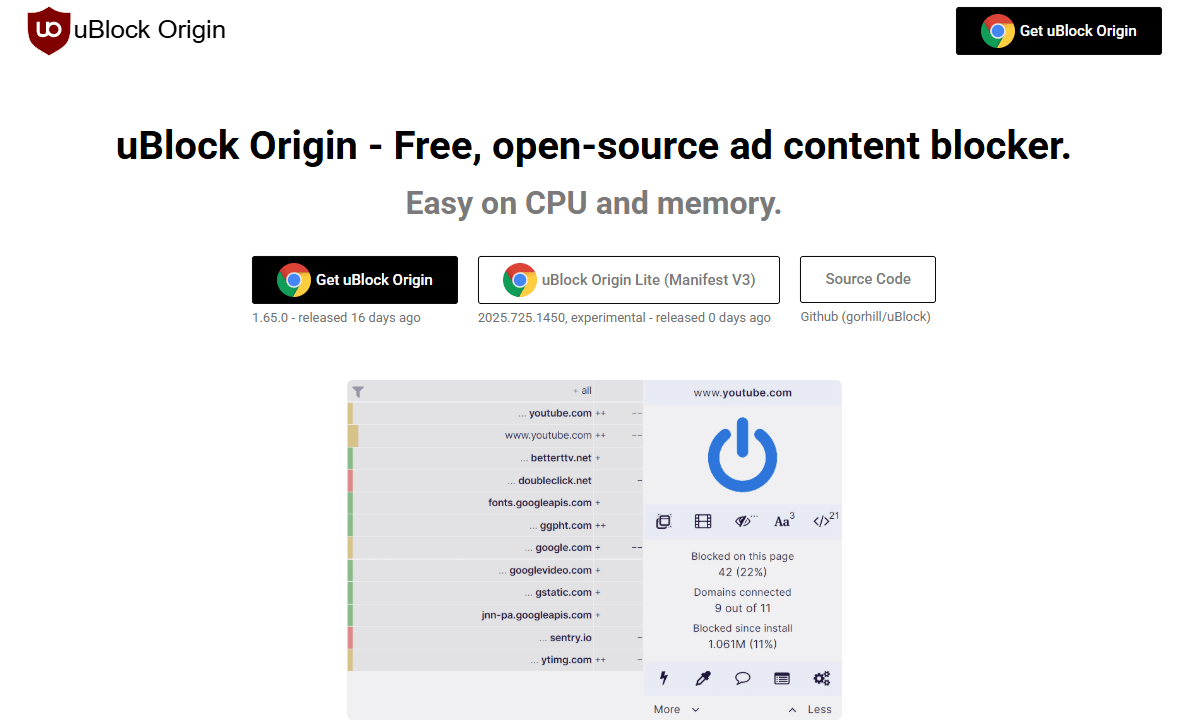
uBlock Origin Lite is the streamlined version of a tool that used to top every ad-blocking list, reshaped to work under Chrome’s strict new rules. During weeks of tests on loads of websites, from news hubs to stores and social feeds, it blocked about 85–90% of banners and invisible trackers without slowing pages or breaking site layouts.
Honestly, saying “Lite” stings a bit (the original felt flawless) but considering what Google forced devs into, this comes surprisingly close. At least it’s still completely free and open-source, so if you have the know-how you can verify it’s not doing anything shady with your data.
Top Privacy Features:
- Efficient blocking – Runs ready-made filters that fit Chrome’s latest rules, yet stop nearly all annoying ads or trackers.
- Lightweight performance – Uses way less power than most blockers, so pages still load quickly
- Various filter options – Comes with EasyList, EasyPrivacy, and crowd-powered lists to stop trackers from different sources
uBlock Origin Lite doesn’t do quite as much as the original, but it’s the top pick if you’re sticking with Chrome. During my tests against other Manifest V3 ad blockers, this one stopped more unwanted content while using fewer resources.
3. Privacy Badger — Best Tracker-Blocking Extension
Stats:
- Best price: Free
- Money-back guarantee: N/A
- Website: www.privacybadger.org
- Made by the EFF, a privacy advocacy group
- Learns domain tracking across sites & blocks them
- Global Privacy control signals sites not to sell data
- Takes time to learn tracking patterns on visited sites
- Sometimes blocks necessary site functions until you adjust settings
Privacy Badger blocks tracking in a unique way: it figures out who’s watching you online by spotting patterns, not just using fixed lists. I added it to a clean Chrome setup and surfed like usual for a week, and it stopped invisible snoops on about 70% of sites I visited. As I kept browsing, the number increased as it learned my habits.
Top Privacy Features:
- Algorithmic learning: Machine-driven learning spots shady sites that follow you online and shuts them down fast.
- Global Privacy Control: Sends signals that follow rules like CCPA or GDPR so sites get the message: don’t share my data.
- Transparent controls: See every tracker stopped per page and tweak filters if some sites stop working.
Privacy Badger spotted some trackers uBlock Origin Lite didn’t catch during my test run. Using them together works well, yet running both at once seems like overkill.
4. Ghostery — Best for Seeing Who’s Tracking You
Stats:
- Best price: Free
- Money-back guarantee: 30 days (for premium plans)
- Website: www.ghostery.com
- Blocks ads & trackers
- Detailed information on all trackers
- Premium version includes private search
- Free plan prompts you to upgrade
- Can break websites if you block everything
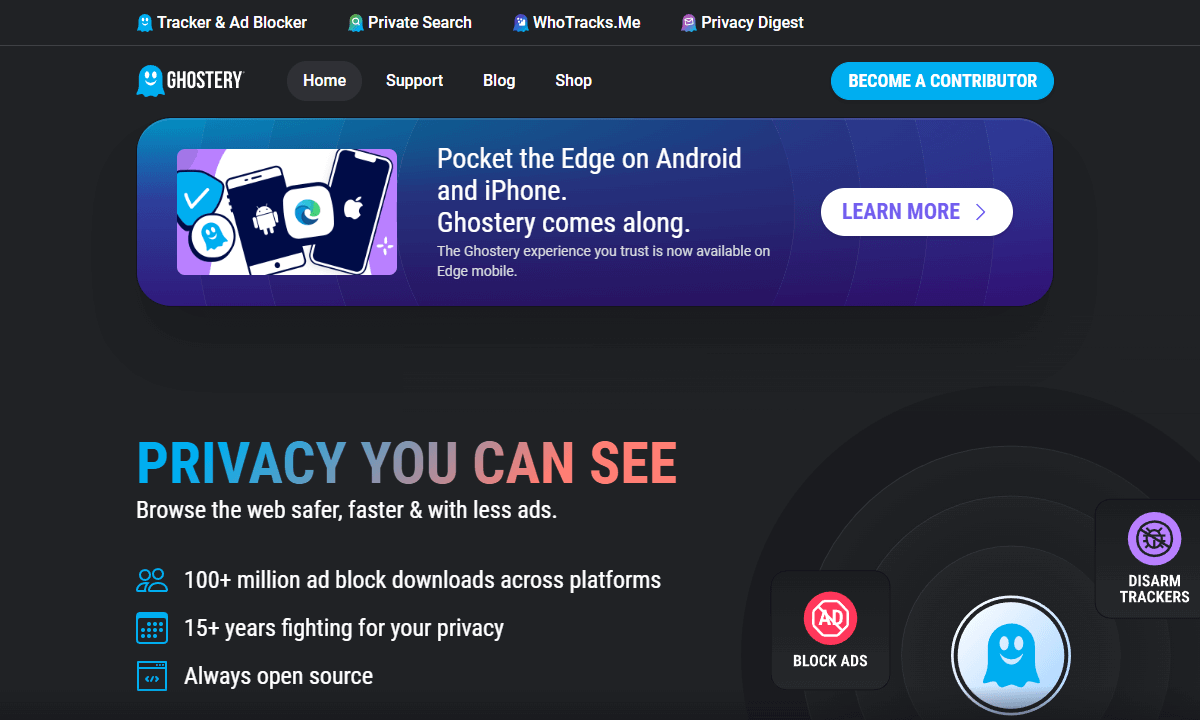
Ghostery stops ads along with hidden trackings, giving you a real-time view of who’s watching your moves online. On a regular news site, it caught 23 sneaky trackers including ad tech, data grabbers, social widgets I didn’t even know were there.
Seeing it all laid out feels kind of creepy, particularly when a basic cooking blog serves up 15 different trackers. Each one gets labeled by purpose, whether it’s pushing ads, collecting stats, or so-called “customer interaction.”
Top Privacy Features:
- Detailed tracker identification: See exactly which trackers get stopped on sites, with each one tagged by type, reason, or function, so you know how it works.
- Ad blocking: Stops ads from showing up (like banners, pop-up windows, or clips) by using fresh filters that update often.
- Privacy dashboard: Shows your tracker block count history, and reveals the companies that try to track you most often.
Ghostery might be too much if all you care about is blocking ads, but it’s spot-on for folks curious about who tracks their info online. I am that person, and I checked the Ghostery panel more than I probably should’ve.
5. Global Privacy Control — Sends Automatic Opt-Out Requests
Stats:
- Best price: Free
- Money-back guarantee: N/A
- Website: www.globalprivacycontrol.org
- One-toggle setup, no configuration needed
- Legally recognized under GDPR & CCPA
- Automatically exercises privacy rights on compatible sites
- No ad or tracker blocking
- Many websites ignore the signal
- No way to verify if sites honor your request
Global Privacy Control is a browser signal that tells websites you don’t want your info sold or shared, which is a right granted under laws like California’s CCPA. But tons of websites just shrug it off since nobody really checks.
Once I turned GPC on and tested two dozen big sites, only four showed any sign of receiving or honoring the request. Getting one in five right feels weirdly better and worse than I thought it’d be.
Top Privacy Features:
- Automatic opt-out signals: Uses a standardized message from your browser that asks sites to stop sharing or selling your data.
- Legal compliance: Sites that fall under rules like CCPA or GDPR must respond to the signal, it’s a legal requirement.
- Zero configuration: GPC turns on with one click with no setup needed. Just toggle to enable or disable.
Global Privacy Control doesn’t stop tracking right away or tweak how you browse, it just auto-uses your legal privacy options. Does it work well? Somewhat. Better than doing nothing? Yes.
6. Total Adblock — Best Chrome Adblocker for YouTube
Stats:
- Best price: $99/year (included with TotalAV antivirus)
- Money-back guarantee: 30 days
- Website: www.totaladblock.com
- Customizable filter lists
- Very effective for YouTube ads
- Works with Chrome’s Manifest V3 restrictions
- No free version
- Needs updating when YouTube changes ad delivery
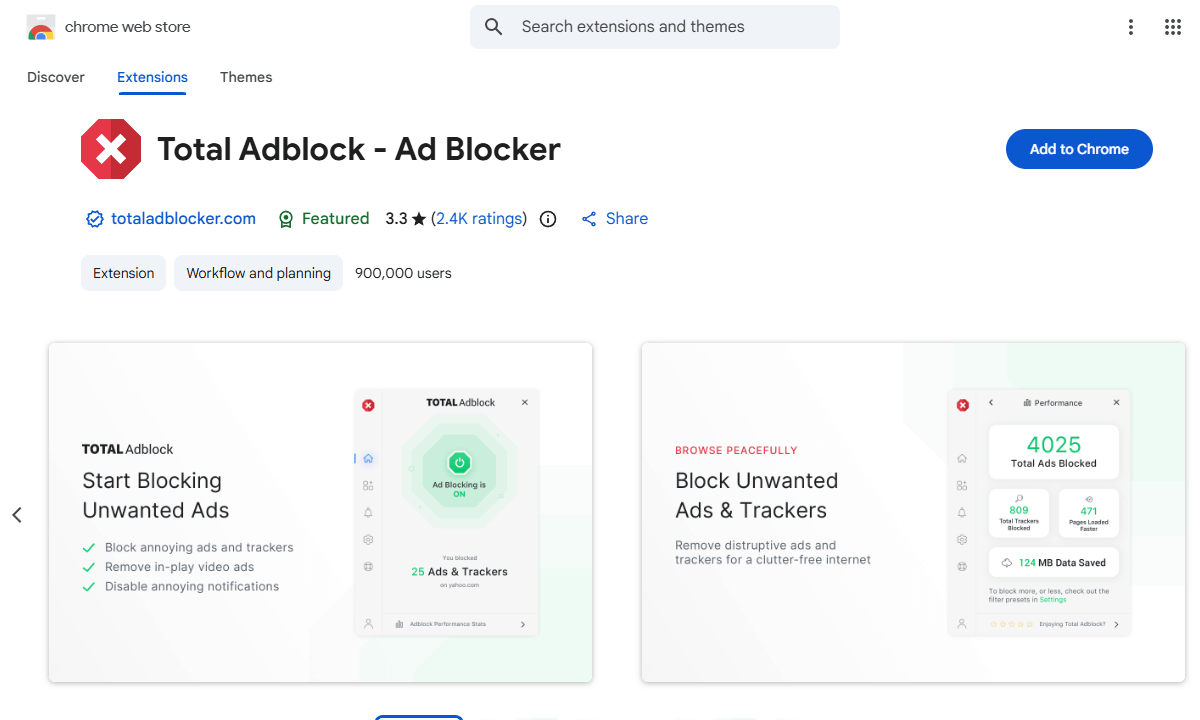
Total Adblock costs money, but it stands out by actually stopping YouTube ads most of the time. During tests, it took down pre-roll clips, mid-video breaks, and annoying overlays. Videos started instantly, no ads, except on days when YouTube changed its ad system and the extension needed an update.
Ads on normal sites get blocked too, although it’s not dramatically better than free options by much when just surfing around.
Top Privacy Features:
- YouTube ad blocking: Built to stop every kind of ad on YouTube, including pre-roll, mid-roll, and banner ads.
- Customizable filters: Pick the ads you’d like to stop while adding sites you trust to a safe list.
- Manifest V3 compatible: Made to handle Chrome’s latest rules, which messed up a lot of old ad blockers.
If YouTube commercials push your buttons (especially when basic tools flop) Total Adblock could earn its price tag. I wouldn’t personally pay for ad blocking, but it does work well if you’re a heavy YouTube user – and it’s cheaper than YouTube Premium.
7. Bitdefender Traffic Light — Best Chrome Antivirus Software
Stats:
- Best price: Free
- Money-back guarantee: N/A
- Website: www.bitdefender.com
- Lightweight, doesn’t slow browsing
- Shows site security ratings in search results
- Scans websites for shady activity before you visit
- No tracker blocking
- Occasionally blocks legit sites as false positives
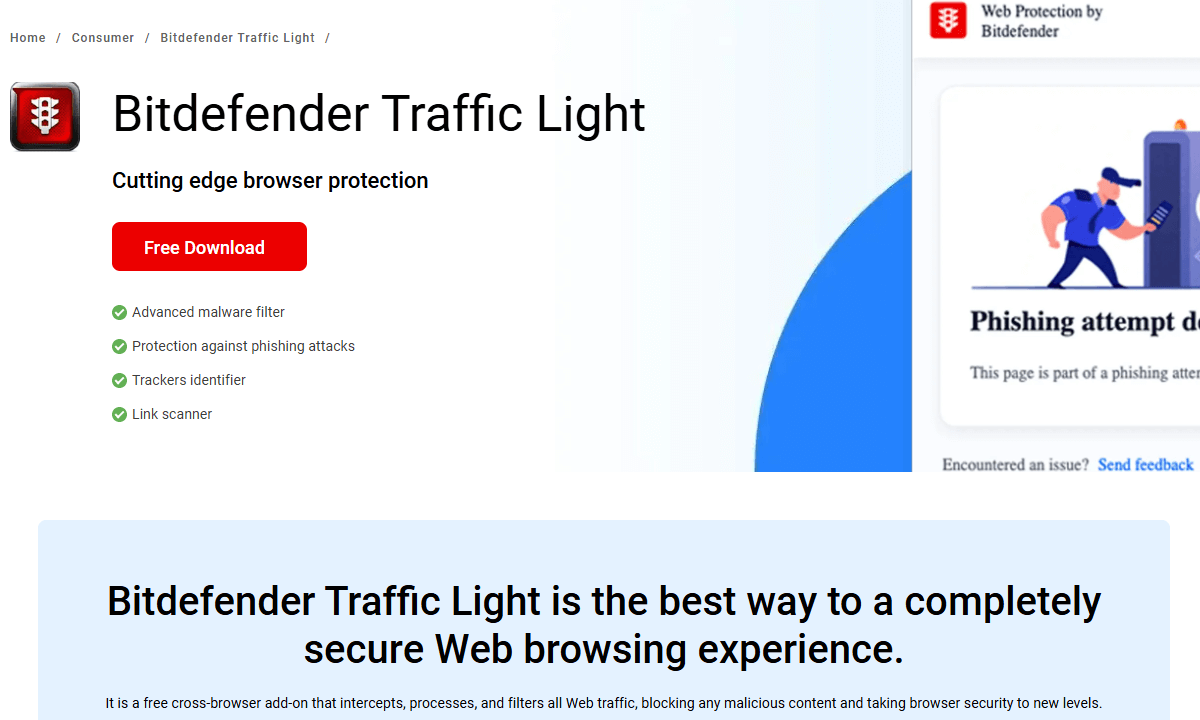
Bitdefender Traffic Light works like a shield in your browser, spotting shady websites before they load by tagging search links with color codes: green for safe, yellow for iffy, or red for dangerous.
During my test on fake scam sites inside a virtual setup, it stopped 8 out of 10, popping up loud alerts. It didn’t catch every bad link, but performs well considering it’s free. While surfing normally, it keeps things smooth and doesn’t bug you unless trouble shows up.
Top Privacy Features:
- Real-time scanning: Looks up each site you open in Bitdefender’s list of known threats to spot viruses or fake pages, so you know fast if it’s risky.
- Search result ratings: Adds colored security icons next to links in Google, Bing and Yahoo searches.
- Phishing protection: Stops access to fake sites that act like real banks or shops, trying to get your credentials.
Traffic Light cares more about safety than keeping your data private, so it won’t stop ads or tracking tools. But if you accidentally open links from shady emails or land on dodgy sites, built-in virus defense in your browser can keep real trouble at bay.
8. DuckDuckGo Privacy Essentials — Combined Privacy Protection
Stats:
- Best price: Free
- Money-back guarantee: N/A
- Website: www.duckduckgo.com
- Privacy grade for visited websites
- Includes DuckDuckGo private search
- Blocks trackers & upgrades connections to HTTPS
- No ad block
- Privacy grades can seem arbitrary
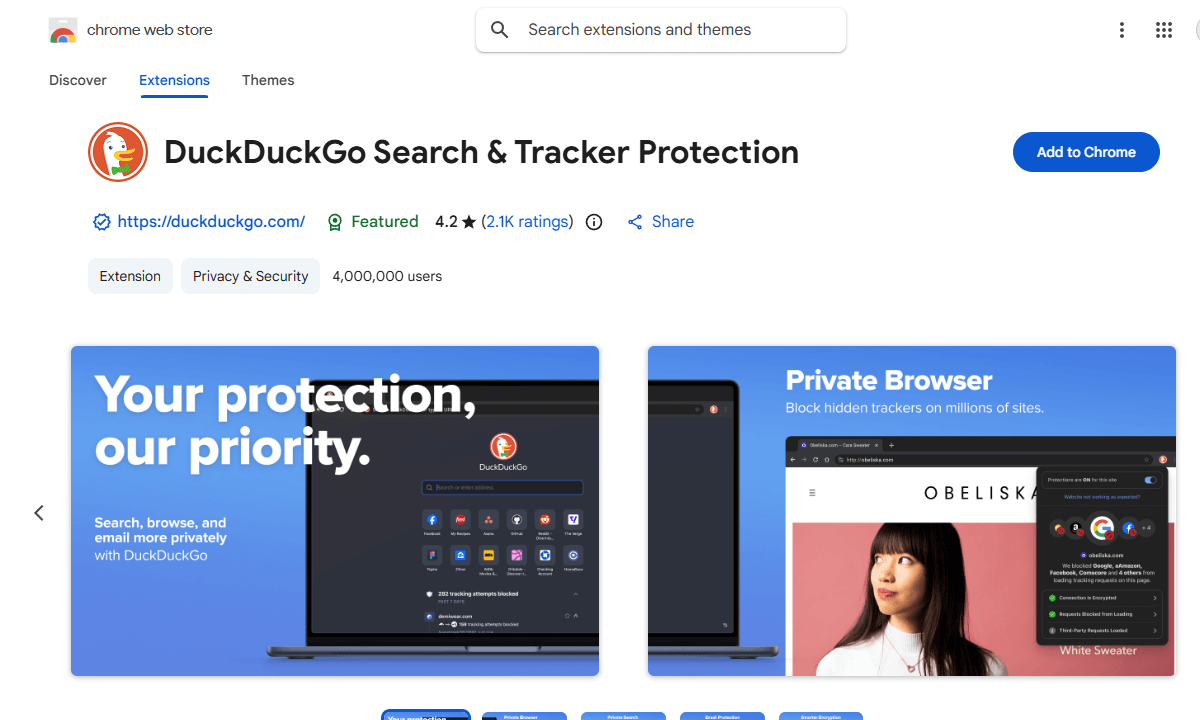
DuckDuckGo Privacy Essentials stops many trackers, switches sites to HTTPS when possible, and gives each page a score from A to F. During tests, it didn’t cut ads, but tracker numbers dropped from 12 to just 3 on one news site, and its rating jumped from D to B. If a safer version of a website exists, DuckDuckGo loads that without asking.
Top Privacy Features:
- Tracker blocker: Blocks scripts that follow you online, including ones used by big ad companies or info sellers.
- Privacy grades: Checks site privacy practices on a scale from A to F and shows better grades when trackers are blocked.
- HTTPS upgrading: Automatically switches to encrypted HTTPS connections where available.
DuckDuckGo Privacy Essentials works well if you just need simple protection from trackers. While it’s not as strong as a full ad blocker, it still stops most tracking right out of the box.
9. Adblock Plus — Classic Chrome Adblocker (With Caveats)
Stats:
- Best price: Free
- Money-back guarantee: N/A
- Website: www.adblockplus.org
- One of the most established ad blockers
- Works with Chrome’s Manifest V3 restrictions
- Extensive filter lists maintained by the community
- Allows “acceptable ads” by default
- Charges companies to allowlist their ads
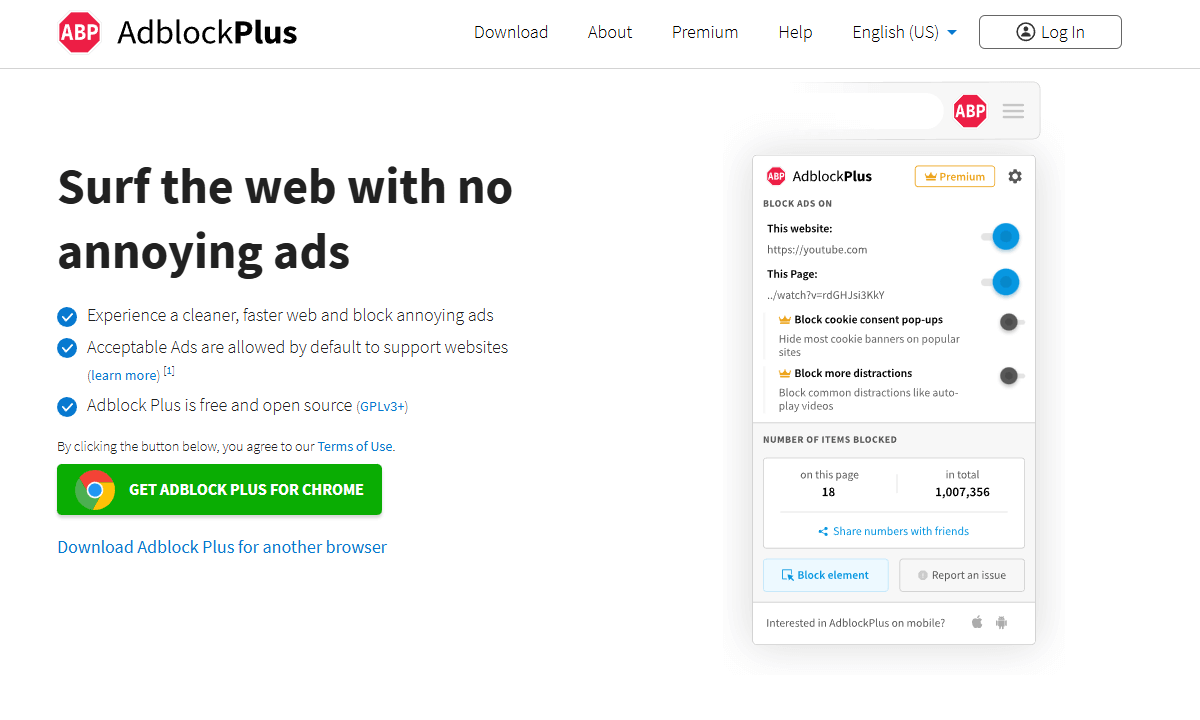
Adblock Plus was one of the first real ad blockers for browsers. However, its “acceptable ads” program (letting companies pay to be allowlisted) undermines the whole idea of an ad blocker. You can switch that setting off, but it’s still annoying.
After a week of use, roughly 80% of ads vanished on big websites, but some slipped through compared to what uBlock Origin Lite grabs. Once you set it up your way, performance is solid.
Top Privacy Features:
- Extensive filter lists: Relies on EasyList and user-updated lists to catch ads while stopping certain trackers.
- Element hiding: Stops ads from showing up and removes the blank spots they leave behind, keeping webpages looking clean.
- Customizable filtering: Set up your own rules to hide ads you don’t want on sites you use a lot.
Adblock Plus does its job, though I won’t cheer too loudly for a tool that takes cash from companies to let their ads through. You might stick with it if you’re used to it and believe in the “acceptable ads” idea, sure. If you’re starting fresh, there are better options out there.
10. Disconnect — Privacy-Focused Tracker Blocker
Stats:
- Best price: Free
- Money-back guarantee: N/A
- Website: www.disconnect.me
- Speeds up page loads
- Categorizes trackers by type
- Doesn’t block ads
- Less effective than newer privacy extensions
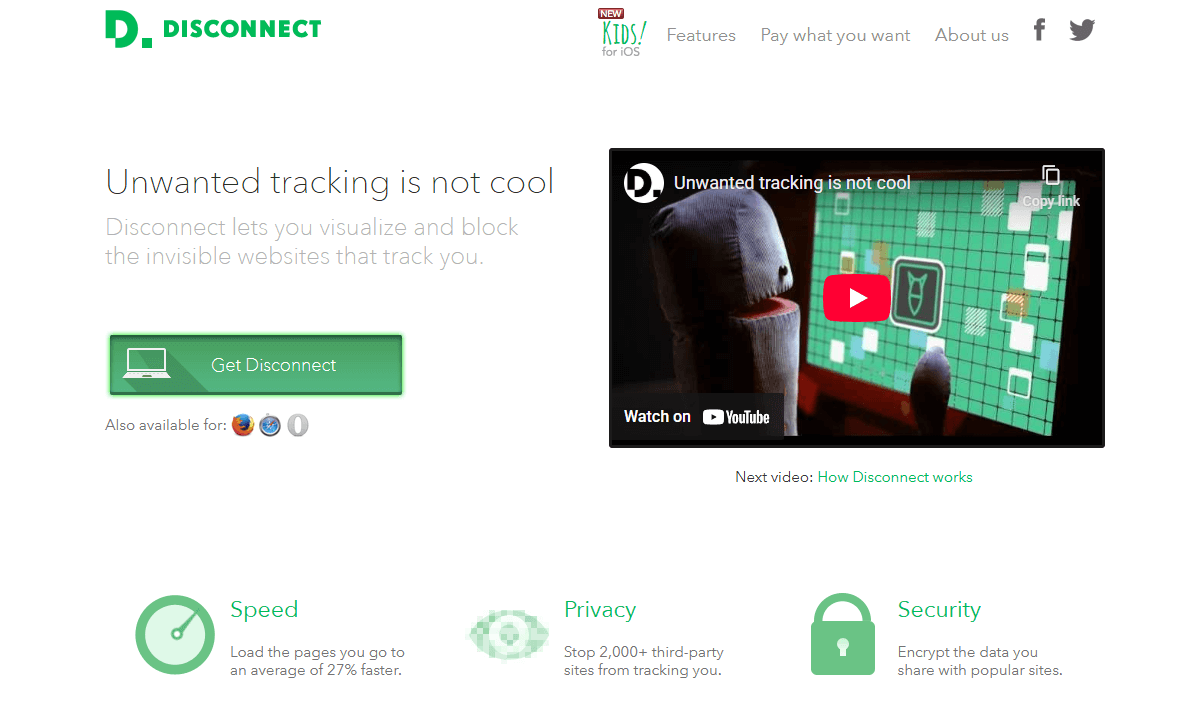
Disconnect just stops trackers dead. It sorts them into types like ads, data collectors, and social widgets. You can even see how these companies connect, which is fascinating until it gets depressing (everything is linked to everything else, there’s no escape).
During my checks, each webpage had anywhere from 5 to 20 sneaky pings shut down. Pages loaded more quickly too, roughly half a second faster due to all those tracking scripts being shut down.
Top Privacy Features:
- Tracker categorization: Sorts blocked trackers into types, like ads, data collection, social networks, or site content, to show which companies are watching you.
- Request visualization: A map pops up showing how trackers link together when you browse different sites.
- Search privacy: Includes encrypted search that means search engines can’t see what you’re looking up.
Disconnect works fine but feels old next to fresh tools that stop trackers while also killing ads and include other features. It’s not bad, just not as good as other extensions that pack more in.
Conclusion
I recommend trying uBlock Origin Lite to block ads alongside Privacy Badger to handle sneaky trackers. This combo stopped nearly every ad and tracker I came across, kept Chrome fast, and didn’t break websites.
What privacy add-ons really did the trick for you? Did any mess up websites you visit daily? Or maybe there’s a tool I haven’t tried yet that’s worth checking out? Leave me a comment and let me know, and thanks for reading.
FAQ: Best Chrome Extensions for Privacy
What Does “Do not track” do in Chrome?
The ‘Do Not Track’ option in Chrome tells sites you don’t want to be followed around, but websites can ignore it, which nearly all end up doing.Do Chrome Ad Blockers Still Work?
Some Chrome ad blockers keep working despite Google’s Manifest V3 update. uBlock Origin Lite runs under tighter rules, just like Adblock Plus and Total Adblock.How Do I Stop Chrome Tracking Me?
You can’t completely stop Chrome from tracking you, but turning off “Make searches and browsing better” under Privacy and Security helps a bit. You can also add tracker-blocking tools through extensions and clear your cookies occasionally, too.
Leave a Reply