Best Free Encryption Software: Top 11 Tools for Sensitive Data
- Table of Contents
- Are Free Encryption Tools Safe?
- My Methodology: How to Choose the Best Free Encryption Software
- The 8 Top Free Encryption Tools
- 1. NordLocker -- Best for User-Friendly Cloud Vaults
- 2. AxCrypt -- Best for Quick File Encryption
- 3. VeraCrypt -- Best for Maximum Security and Control
- 4. 7-Zip -- Best for Quick Archive Encryption
- 5. BitLocker -- Best for Windows Full Disk Encryption
- 6. Cryptomator -- Best for Cloud Storage Encryption
- 7. Gpg4win -- Best for Email and File Signing
- 8. DiskCryptor -- Best Lightweight Full Disk Encryption
- Honorable Mentions
- Free vs Paid Encryption Software: Which Is Best for Me?
- Conclusion
- FAQ: Top Free Encryption Tools

Quick Summary: The Best Free Encryption Programs
AxCrypt Free provides high-quality file encryption without spending a penny. Download it for free now and stop worrying about data breaches.
- NordLocker – Simple online cloud vault with generous free storage. Can be bundled with NordVPN.
- AxCrypt – One-click AES-256 encryption with Windows integration for effortless file protection.
- VeraCrypt – Free software that builds secure storage areas or locks down entire drives.
- 7-Zip – Quick archive encryption that doubles as a compression tool.
- BitLocker – Microsoft’s built-in solution for whole disk encryption on Windows Pro.
- Cryptomator – Keeps your files safe in the cloud, no matter which storage service you use.
- Gpg4win – A tool for encrypting emails or files using OpenPGP.
- DiskCryptor – A lightweight tool that encrypts your entire drive.
I’ve spent the last couple weeks trying out free encryption apps; turns out, most aren’t worth it. A bunch still have that ancient vibe from way back when, while some act like securing a file needs expert-level skills.
It’s vital for encryption tools to lock down your info so tight, even spies quit trying to break into your vaults. Surprisingly, a few no-cost apps actually nail it just right.
This guide covers eight solid free encryption tools that actually work, and three decent alternatives if your needs are different. I sorted them based on their strongest use case, since picking up NordLocker or VeraCrypt just to lock down a single file is kind of like grabbing a sledgehammer to crack an egg; sure, it works, but smarter choices are out there.
Are Free Encryption Tools Safe?
Some free encryption apps can protect your info; it just depends on which one you pick. A lot of well-known options are open-source, so folks can see what’s going on inside or dig into old security reviews. With pricier encryption software, that level of honesty is rare; because of this, most tend to trust open-code apps instead.
Even when something’s free and open-source, you’re not automatically safe. Some people snag sketchy files hoping for security and end up installing harmful software by mistake. Stick to familiar tools from reliable sources instead; these have stood the test of time, come recommended by actual users, plus get reviewed independently.
My Methodology: How to Choose the Best Free Encryption Software
Most people won’t use every single tool, they just want solid encryption that doesn’t drive them crazy. Here’s what caught my eye, and what you can check out yourself:
- Encryption strength: Stick to AES-128 or stronger, and skip weaker options. Doesn’t matter if it’s free or open-source; old methods drag you backward.
- Ease of use: Using it should feel natural. While trying Gpg4win, I had to study tutorials for twenty minutes just to secure a single file. That’s okay if you enjoy tinkering or happen to geek out like me, but it’s not for everyone.
- Platform support: I went through each app on Windows and jotted down which ones work on macOS, Linux, Android, and iOS.
- Active development: Staying fresh matters, and software left untouched since 2018 is likely outdated. I checked every app’s update date, just to confirm they hadn’t gone stale. Recent changes mean better reliability.
- Transparency: Open-source software scores points because everyone can look at the code if they want. When it comes to closed systems, you’ve got no choice but to trust what they say.
- Performance impact: Some apps slow down your device a lot when they encrypt files, so I ran checks to drop any that hog battery or feel sluggish.
The 8 Top Free Encryption Tools
Before we dive into each tool, take a look at this quick comparison to help you narrow down your options:
| Tool: | Encryption | Ease of Use | Platforms | Cloud Integration | Business Features | Pricing |
|---|---|---|---|---|---|---|
| NordLocker | AES-256, XChaCha20, Poly1305 | Very easy, drag & drop | Windows, macOS, Android, iOS | Yes (built-in) | File sharing with encryption | Free + Paid |
| AxCrypt | AES-128 | Easy one-click encryption | Windows, macOS, Android, iOS | Yes (cloud-aware) | Secure key sharing, master key management | Free + Paid Plans |
| VeraCrypt | AES, Serpent, Twofish | Tricky technical setup | Windows, macOS, Linux | No | None | Free (Open Source) |
| 7-Zip | AES-256 (ZIP/7z) | Easy simple interface | Windows, macOS* Linux* | No | None | Free |
| BitLocker | AES-128/256 | Easy, built into Windows | Windows only | No | Enterprise key management | Free (Windows Pro+) |
| Cryptomator | AES-256 | Simple vault setup | Windows, macOS, Linux, iOS | Yes (cloud vaults) | None | Free / Donate |
| Gpg4win | OpenPGP | Manual key management | Windows** | No (but works for email/files) | None | Free (Open Source) |
| DiskCryptor | AES-256, Twofish, Serpent | Easy one-time setup | Windows | No | None | Free (Open Source) |
**Works with Linux/Mac ports of GnuPG
1. NordLocker — Best for User-Friendly Cloud Vaults
Stats:
- Best price: Free
- Money-back guarantee: 30 days (paid plans)
- Website: www.nordvpn.com
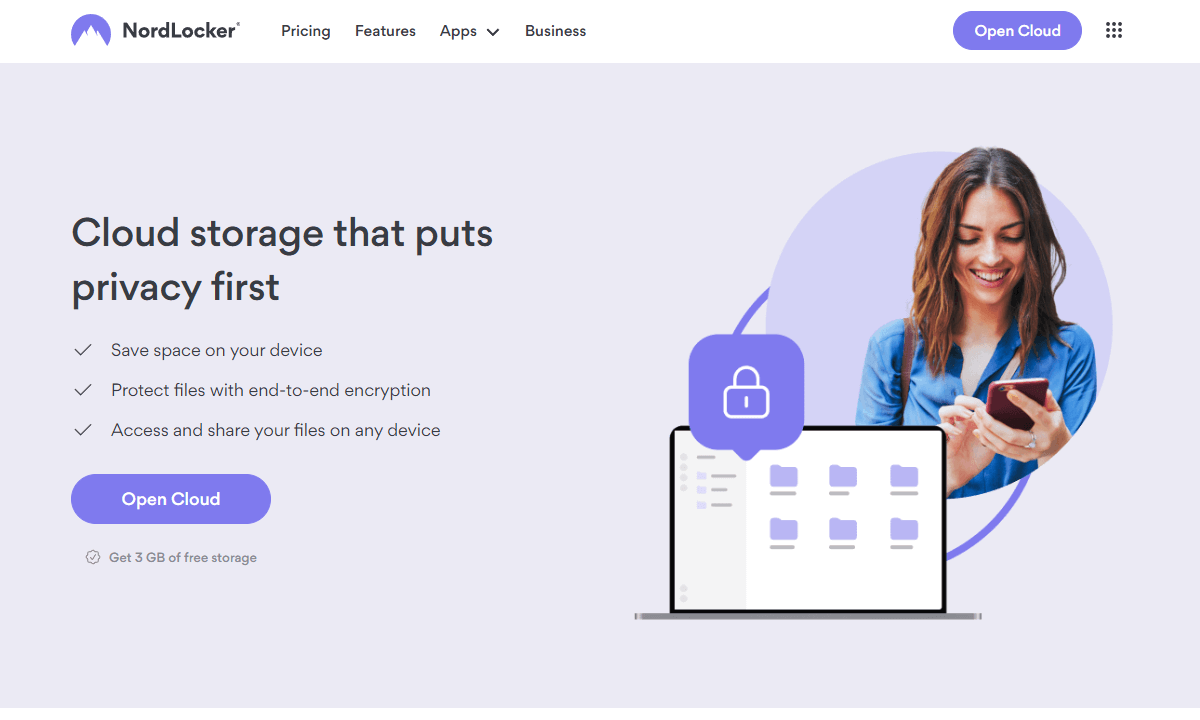
- Best for: Non-technical users who want encrypted cloud storage
- Simple & intuitive interface
- End-to-end encryption on free plan
- Not open-source
- Free tier limited to 3GB
After wrestling with VeraCrypt’s dated UI and Gpg4win’s certificate hurdles, NordLocker feels refreshingly modern. Instead of fumbling through menus, you simply set up secure lockers and add files. I added 2GB of family photos that were encrypted and synced to Nord’s cloud storage servers automatically, then decrypted seamlessly on my laptop later.
My Experience With NordLocker: Hands-On Performance
I spent an afternoon shifting personal stuff into protected folders, and it went smoothly as uploading files took almost no effort. Encrypting them happened in a flash, while the mobile apps ran without hiccups so I could unlock whatever I needed while out. Only snag? That 3GB of free storage disappeared fast.
NordLocker Pricing and Value
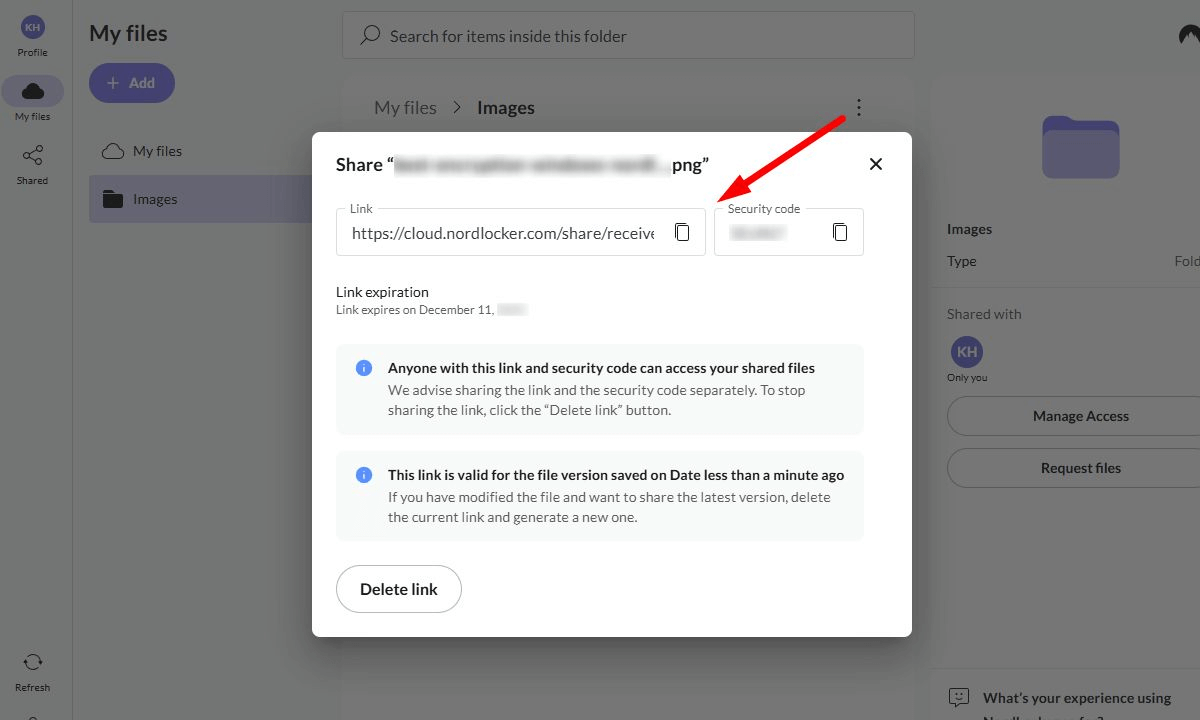
NordLocker offers 3GB of secure online space at no cost; with bundled subscriptions starting under $5 monthly for 1TB storage and access to other Nord products like NordVPN, backed by a month-long refund promise.
2. AxCrypt — Best for Quick File Encryption
Stats:
- Best price: Free (limited features) / $3.92/month
- Money-back guarantee: 30-day free trial
- Website: www.axcrypt.net
- Best for: Windows users who want easy file-by-file encryption
- Automatic re-encryption when you edit files
- Right-click encryption is genuinely foolproof
- Works seamlessly with cloud storage services
- Free version lacks key sharing features
- Windows-centric with limited macOS/Linux support
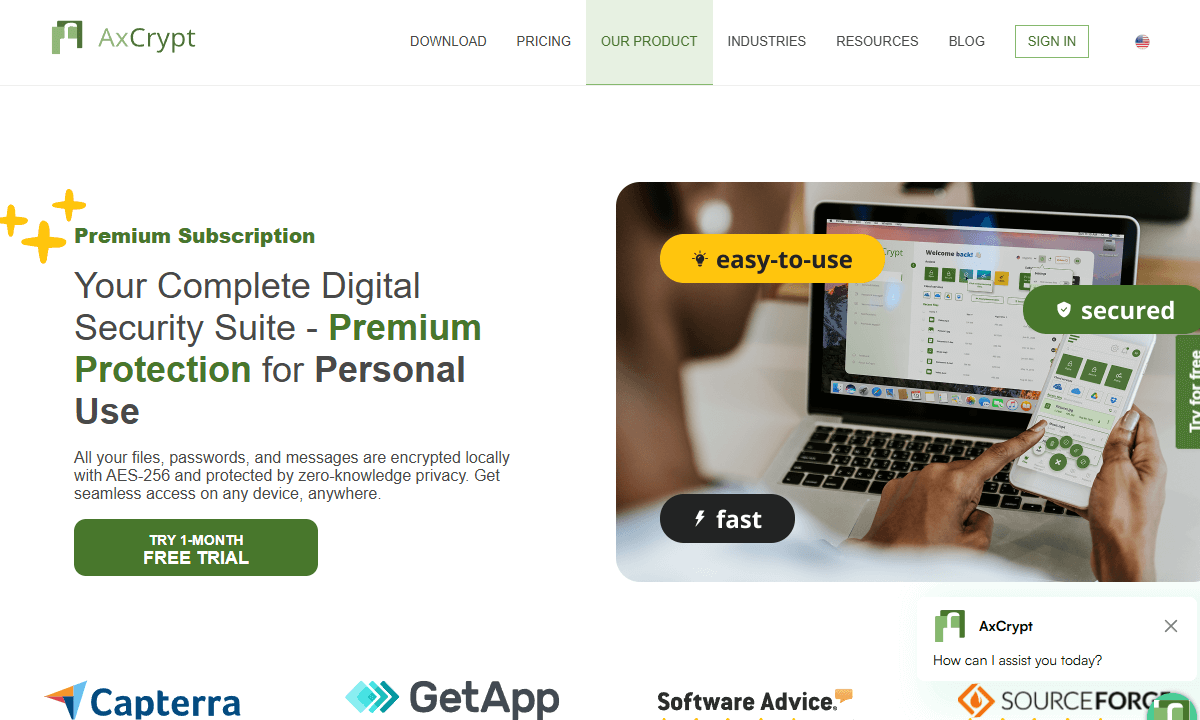
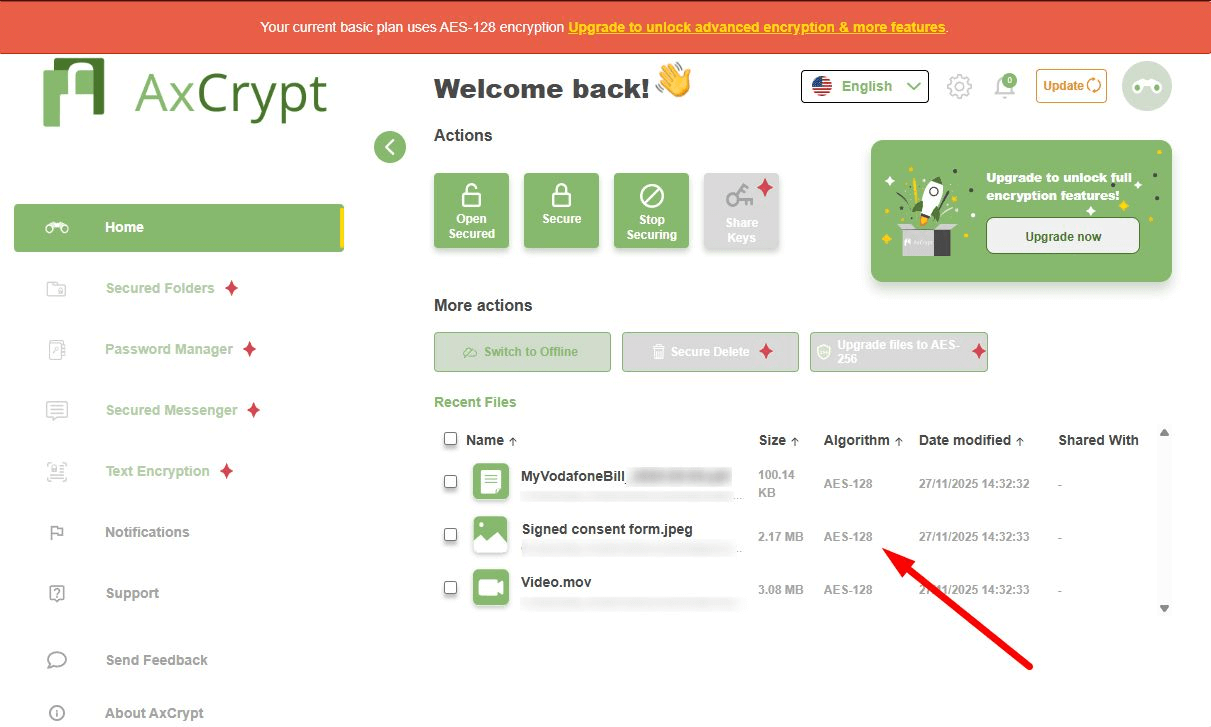
AxCrypt is designed for regular people, not just tech-focused folks. Once set up, encrypting a file was as easy as right-clicking and picking ‘Encrypt’ from the menu. Its free plan runs on AES-128 and fits naturally into how you already work.
My Experience With AxCrypt: Hands-On Performance
During tests with AxCrypt, I encrypted about fifty separate files and every file only needed a few seconds. After securing my income documents and saving them online using Dropbox, the app spotted changes on its own, then automatically protected those updated files again.
The biggest hassle? Sending encrypted files using secure keys isn’t allowed on the free version. It works okay just for you, but if you want to share with others, you’re stuck needing the paid upgrade.
AxCrypt Pricing and Value
AxCrypt Free is always free; no pop-up prompts to upgrade, no artificial restrictions. It gives solid encryption plus simple tools. For about $4 a month, the Premium version brings password handling and safe key exchange.
3. VeraCrypt — Best for Maximum Security and Control
Stats:
- Best price: Free
- Money-back guarantee: N/A
- Website: veracrypt.io
- Best for: Technical users who want bulletproof full-disk encryption
- Open-source code
- Independently audited
- Multiple encryption algorithms
- Steep learning curve
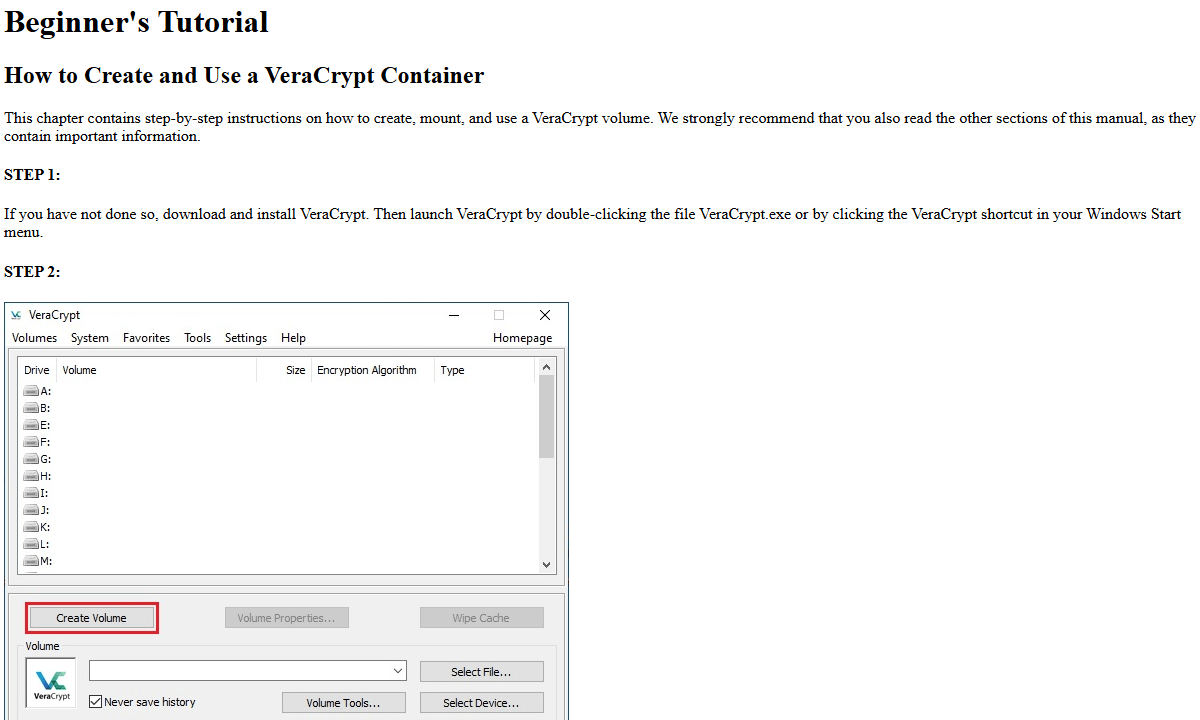
- Interface looks like it hasn’t been updated since Windows XP
VeraCrypt follows TrueCrypt’s footsteps, keeping that top-tier encryption. It feels clunky to use, but during testing, I liked how it handled a 10GB encrypted space like a real drive. It auto-encrypted every file I dropped inside through AES-256 in XTS setup with almost no performance hit on my SSD.
My Experience With VeraCrypt: Hands-On Performance
Setting up my first drive lasted around half an hour, mostly because VeraCrypt made me wiggle the mouse like crazy to generate entropy. Even so, the thing that caught my eye was the secret volume trick. It lets you stash fake files inside an encrypted space while tucking the actual data beneath a second unseen level. Smart move or overkill? Depends on just how paranoid you feel.
VeraCrypt Pricing and Value
VeraCrypt costs nothing; never has, never will. Being open source, no company can slap a price tag on it or fill it with ads. But there’s a catch: you’re on your own for support beyond the guides and user-run forums. Security-wise, it’s on par with corporate tools. You’re just paying with your time rather than your money.
4. 7-Zip — Best for Quick Archive Encryption

Stats:
- Best price: Free
- Money-back guarantee: N/A
- Website: 7-zip.org
- Best for: Fast encryption when sharing files via USB or email
- Very small & lightweight app
- AES-256 built into archive creation
- Filename encryption not available in ZIP format
- No key management, just memorize your passwords
7-Zip isn’t built just for encrypting files. It’s a file archiver that also happens to include encryption. Just like how a Swiss Army tool has a toothpick, but it’s not a dental tool.
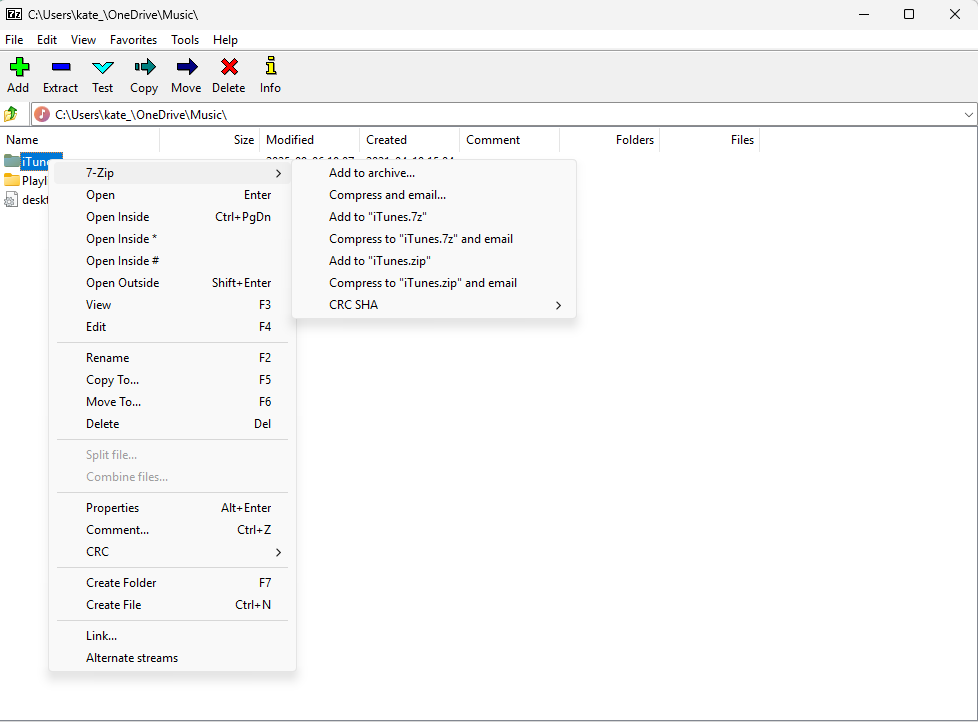
When I had to share private files with my accountant, I skipped complex key setups or showing him VeraCrypt tricks. Instead, I packed everything into an encrypted 7z file, shot it over by email, then texted the password moments later. In all of five minutes, it was done.
My Experience With 7-Zip: Hands-On Performance
While testing, I compressed and zipped a 2GB folder. It only needed around three minutes, and the output ended up more compact while using AES-256 encryption. Later, when opening it on another computer (this one didn’t have 7-Zip installed) Windows asked me to grab the software before continuing.
The truth? 7-Zip’s security depends totally on your password. That means you need tough, one-of-a-kind passwords every time. I ran my own check and made archives using flimsy passwords, then hit them with John the Ripper. Those weak passwords broke open fast, like under ten minutes.
7-Zip Pricing and Value
7-Zip is completely free with no strings attached. No premium tiers, no feature gates, and no prompts to subscribe. It does compression and encryption, and it does them well.
5. BitLocker — Best for Windows Full Disk Encryption
Stats:
- Best price: Free (with Windows 10/11 Pro, Enterprise and Education)
- Money-back guarantee: N/A
- Website: www.microsoft.com
- Best for: Encrypting entire Windows drives natively
- Encrypts your entire drive
- TPM integration prevents drive theft attacks
- Not available on Windows Home
- Closed-source & no independent audits.
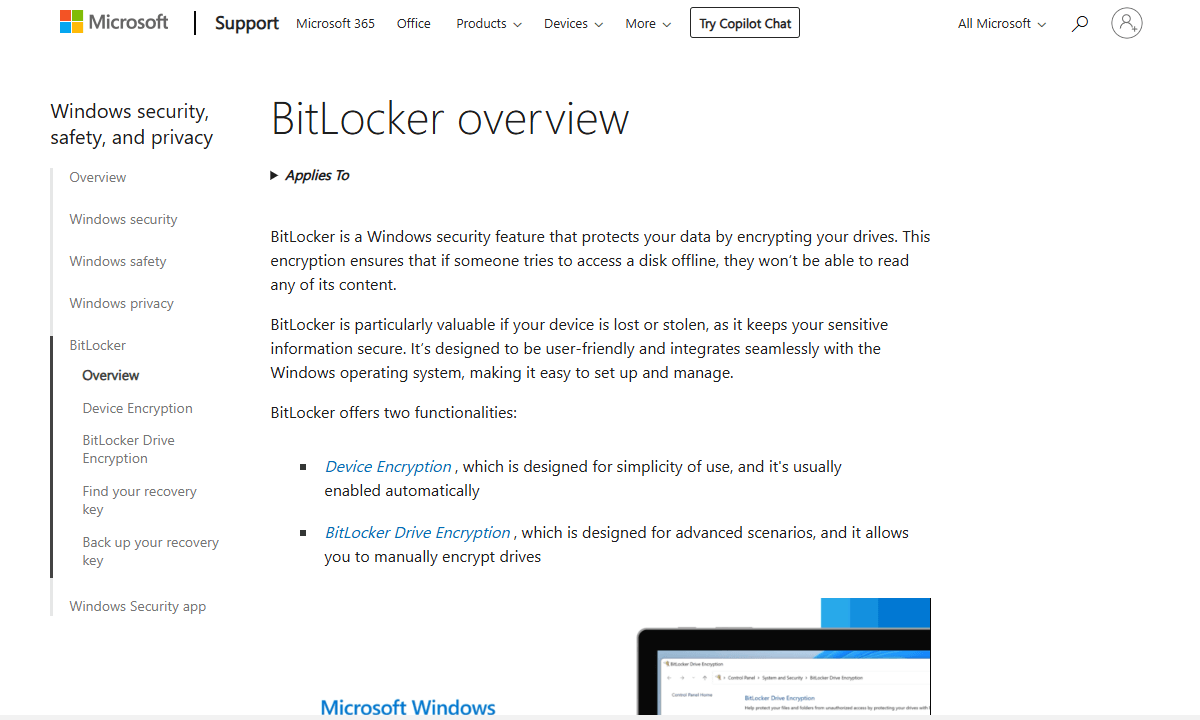
BitLocker comes free with Windows Pro and higher plans, keeping your data safe by locking up the whole drive using strong AES-128 or AES-256 encryption; once set up, it unlocks itself quietly each time you sign in.
My Experience With BitLocker: Hands-On Performance
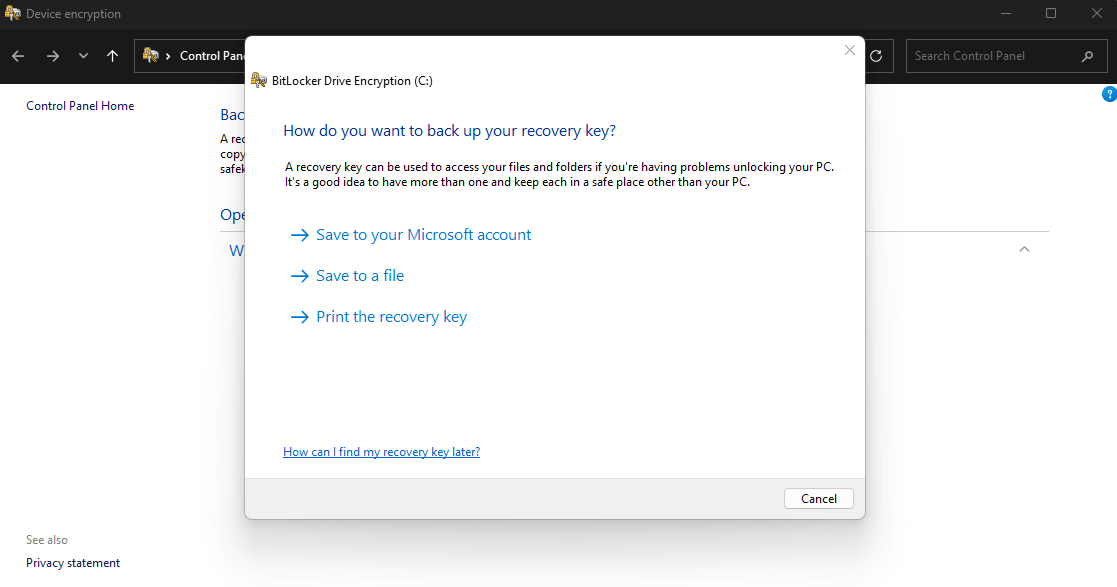
While testing, BitLocker hardly slowed down my Windows 11 machine. I ran encryption in the background during regular tasks and performance stayed smooth. Setting it up is straightforward; open Start, look up BitLocker, then turn it on. Keep your recovery key separate from your Microsoft account to stay safer.
BitLocker Pricing and Value
If you’re running Windows Pro or above, you already have BitLocker built in. If you’re on the Home edition, it’s possible to upgrade for around $100; worth it if you’re serious about easy-to-use security (otherwise, VeraCrypt is completely free for all editions).
6. Cryptomator — Best for Cloud Storage Encryption
Stats:
- Best price: Free
- Money-back guarantee: N/A
- Website: www.cryptomator.org
- Best for: Encrypting files before uploading to Dropbox, Google or OneDrive
- Open-source & independently audited
- Works with many cloud storage providers
- No built-in sharing features
- Requires manual vault mounting to access files
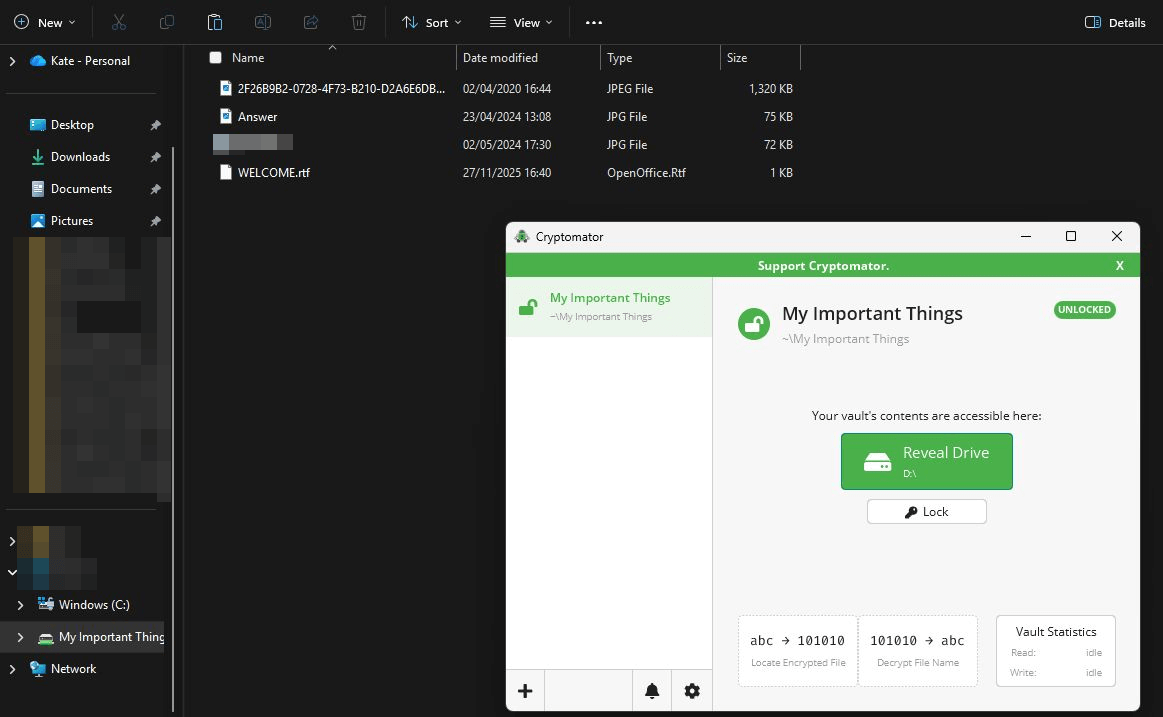
Cryptomator tackles an issue many encryption apps skip: securing files in the cloud without needing a full reupload when edits happen. Putting a vault right into my Dropbox sync folder made it save all data as scrambled chunks under random labels, each locked separately. Adding a new file meant only that one encrypted block uploaded for fast, efficient syncing.
My Experience With Cryptomator: Hands-On Performance
I tried Cryptomator by tossing 5GB of photos and documents into a brand-new vault. The files were secured right away, and opening that vault later on my phone was still quick and smooth using the app.
Here’s why it’s clever: your files stay hidden from the cloud. No one can scan your documents, employees can’t sneak a look, and intruders find nothing useful even if they manage to crack your password.
Cryptomator Pricing and Value
For desktop use, Cryptomator is free (with optional donations to support development). The mobile apps cost around $10; it’s a one-time payment that seems fair, given how convenient it is to use.
7. Gpg4win — Best for Email and File Signing

Stats:
- Best price: Free
- Money-back guarantee: N/A
- Website: www.gpg4win.org
- Best for: OpenPGP encryption for emails and files
- Industry-standard OpenPGP implementation
- Encrypts, signs, verifies files & emails
- Interface is confusing for beginners
- Steep learning curve with key management
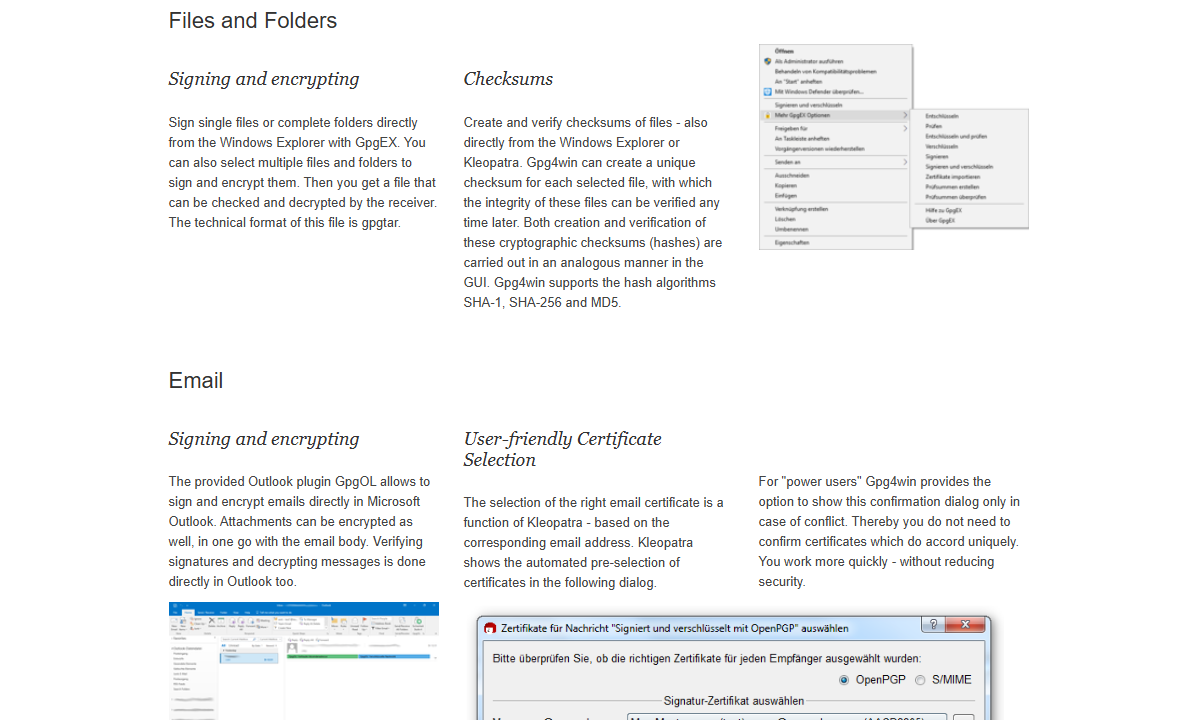
Gpg4win brings GnuPG to Windows, a free version of OpenPGP that runs on public key crypto: lock data with a person’s public key, unlock it with their private one. To check how secure Outlook emails are, I made my keys and shared the public key with a coworker. His encrypted email arrived fully encrypted, and Kleopatra (the certificate manager and frontend for GnuPG) decrypted it instantly.
My Experience With Gpg4win: Hands-On Performance
Setting up Gpg4win took about 45 minutes, and I could check the documents while they were encrypting. Kleopatra assumes you already know stuff like key signing or revocation files, and doesn’t explain the basics. If your only goal is locking down a single document, this feels way too heavy-duty.
Gpg4win Pricing and Value
Gpg4win costs nothing, but picking it up takes time. Its security never fails, but using it? Imagine trying to shift gears blindfolded, while a stranger yells directions in a language you don’t know. It’s difficult, but worth it for the security it provides.
8. DiskCryptor — Best Lightweight Full Disk Encryption
Stats:
- Best price: Free
- Money-back guarantee: N/A
- Website: www.diskcryptor.org
- Best for: Windows users who want BitLocker functionality on Home edition
- Lightweight alternative to more complex tools
- Multiple encryption algorithms supported
- Windows only
- Development has slowed in recent years
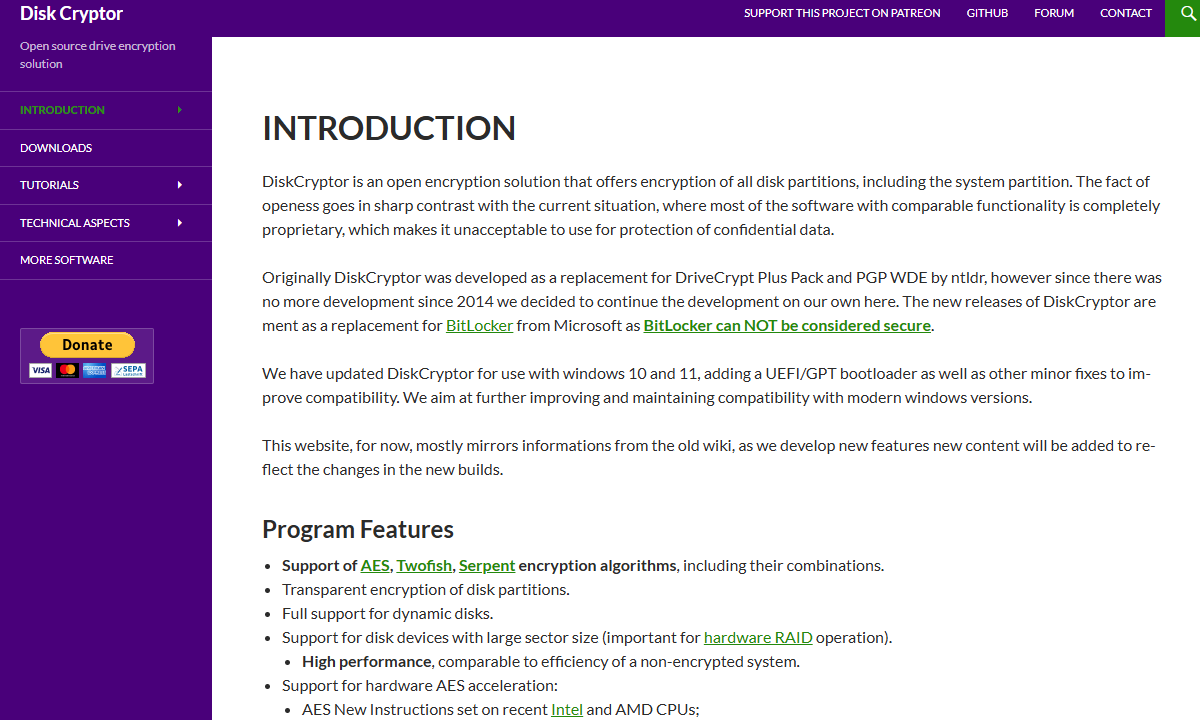
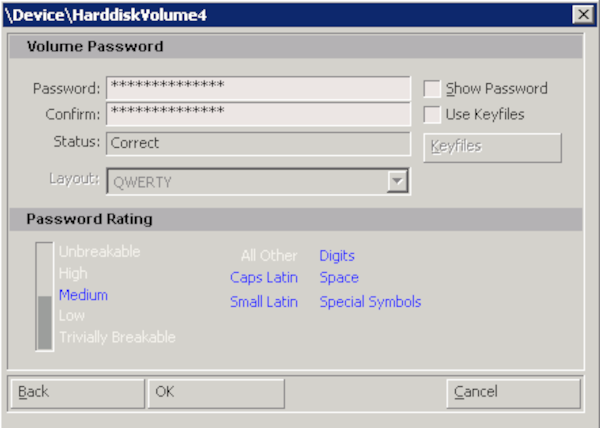
DiskCryptor flies under the radar, yet packs a serious punch when it comes to encrypting your entire disk. Security is on par with VeraCrypt but it’s easier to use. During testing, encrypting a 250GB chunk of drive took roughly 2 hours. Starting encryption felt smooth because all I had to do was pick a volume, type a passcode, then hit “Encrypt.”
My Experience With DiskCryptor: Hands-On Performance
I fired up an ancient laptop to test full-disk encryption. Instead of loading Windows right away, a prompt popped up demanding a password thanks to DiskCryptor’s pre-boot setup. Once encryption wrapped up, device speed didn’t drop much at all. For a no-cost, community-driven app, that kind of efficiency feels rare.
DiskCryptor Pricing and Value
DiskCryptor’s completely free, plus it’s open-source; it stands out as a solid BitLocker substitute for folks using Windows Home who want full drive protection. Development has slowed a little recently, which is mildly concerning long-term, but it still gets updates and actually works like it should.
Honorable Mentions
These tools didn’t quite make my top eight, but they’re still worth a look:
- FileVault: Apple’s go-to disk encryption for Macs, running on AES-256 XTS while linking decryption to your login password. It runs smoothly with nearly zero effort needed. The sole downside is that it only works on Macs. If you’re using macOS, this one’s your best bet.
- GoCryptFS: A fast and actively maintained tool for creating encrypted folders on Linux. It encrypts every file in a selected directory, much like Cryptomator, and performed well during my tests on Ubuntu. It focuses on the command line, yet it is much more modern and secure compared to older options like EncFS.
- AES Crypt: Great if you want to encrypt a single file with no extra tools and no hassle. On Windows, Mac, or Linux, it drops an “AES Encrypt” choice into your right-click menu. When I tried it, my tax document was secured in seconds. After encryption, the file shows a .aes ending. Anyone with AES Crypt and the password can decrypt it.
Free vs Paid Encryption Software: Which Is Best for Me?
Paid encryption tools rarely do a better job than the ones you get for free. The truth is, AES-256 works just the same if you spent $100 on it or downloaded it from GitHub.
With paid encryption, you get ease of use, along with help when things go wrong, as well as business features. Take a look at the key differences between the two:
| Metric: | Free | Paid |
|---|---|---|
| Cost | $0 (obviously) | $50-200/year typically for licenses or subscriptions |
| Encryption Strength | Usually excellent (AES-256 is standard) | Same or slightly better (some add proprietary algorithms) |
| Ease of Use | Varies wildly (from VeraCrypt’s nightmare to NordLocker Free’s simplicity) | Generally better UX with dedicated design teams |
| Support | Community forums and documentation | Email, phone and live chat with actual humans |
| Platform Support | Often limited to one or two operating systems | Usually covers Windows, Mac, Linux, iOS and Android |
| Cloud Integration | Rare (Cryptomator is an exception) | Common, often with included cloud storage |
| Business Features | Basically none (maybe license keys) | Centralized management, compliance reporting, team sharing |
| Updates | Depends on project health and community | Regular security patches and feature updates |
| Transparency | Open source = full code visibility | Closed source = you’re trusting the company |
| Recovery Options | DIY recovery keys you better not lose | Managed recovery with support assistance |
If you’re just protecting your own stuff, free apps often do the job fine; I’ve stuck with VeraCrypt forever without paying anything, and even though it felt tricky at first, it didn’t take long to get comfortable using it.
But for companies, shelling out cash for encryption might make sense; for a small law firm needing a tool their admin staff can use without constant help, a paid option that included live support plus unified key control would absolutely be worth the cost.
Conclusion
For most people NordLocker is the best free encryption software, especially if you’re also in the market for a VPN. AxCrypt Free gives solid safety without hassle when locking regular files, whereas BitLocker or DiskCryptor handle whole drives better on Windows machines. When it comes to cloud storage, go with Cryptomator; it’s free and plays well on most platforms.
The tools exist, they’re free, and they work. You just have to use them.
Over to you now. Which info will you protect first, and which tools have worked well for you? Still torn between VeraCrypt’s strength and AxCrypt’s ease? Drop your thoughts or questions below, and thank you for reading.
FAQ: Top Free Encryption Tools
What Is the Best Free File Encryption Software?
Nordlocker is the best free file encryption software as it bundles free cloud storage with encryption capabilities.Is BitLocker Free?
Yes, BitLocker is free. It comes at no cost on Windows 10/11 Pro, Enterprise, or Education versions. However, folks using Windows Home can’t use it for free, you have to pay to upgrade your edition.Is VeraCrypt Free?
Yes, VeraCrypt is free; it’s open-source software without any premium versions, so it stands out as a top-tier pick for locking down your entire drive at zero expense.
Leave a Reply