The Best Encryption Software for Mac in 2026
- Table of Contents
- How to Choose the Best Encryption Software for Mac: My Methodology
- The Best Mac Encryption Software Tools
- 1. NordLocker -- Best Premium Encryption with Cloud Storage
- 2. Encrypto -- Best Free Encryption Software for Mac
- 3. VeraCrypt -- Best Open-Source Encryption for Power Users
- 4. Cryptomator -- Best for Cloud Storage Encryption
- 5. AxCrypt -- Best for Cross-Platform File Sharing
- 6. GPG Suite -- Best for Email and Document Signing
- 7. Disk Utility -- Best Built-In Mac Encryption Tool
- 8. FileVault -- Best for Full-Disk Encryption
- How to Encrypt a Folder on Mac
- Top Encryption & Privacy Tips for Mac
- Conclusion
- FAQ: Mac File Encryption Software

Quick Summary: Best Mac Encryption Software Tools
- NordLocker – Solid premium service with cloud storage integration.
- Encrypto – Top pick for secure file protection, easy to use with simple drag-and-drop actions.
- VeraCrypt – Powerful open-source security, built for advanced users.
- Cryptomator – Works well to encrypt your cloud files securely.
- AxCrypt – Best for Windows/Mac cross-platform file sharing.
- GPG Suite – Best for email and document encryption.
- Disk Utility – Best built-in Mac encryption tool.
- FileVault – Best for full-disk encryption on Mac.
If you’re here reading about Mac encryption, you’re doing better than 90% of people. Most folks don’t think twice about leaving their tax returns, vacation pics, or that novel they’ve been working on (we’ve all got one, right?) sitting unprotected on their laptop. Sure, every app advertises “military-grade” security, but what does that even mean? Spoiler: not much.
Over a few weeks of testing different Mac encryption tools, I found that the best ones aren’t overloaded with features or flashy claims. They just keep your data private and let you get on with your day. Here you’ll find what really delivered.
How to Choose the Best Encryption Software for Mac: My Methodology
There’s no magic checklist I follow here, but after testing way too many encryption tools over the years, I’ve learned what matters. Here’s what I look for:
- Encryption quality: Strong encryption is a must. I checked for AES-256 (or something just as solid) because weaker options in 2025 just aren’t reliable enough.
- Cross-platform compatibility: Mac fans still need to send things to folks on Windows or Linux now and then. When a tool stops working outside of macOS, that’s no good – instead of sticking to only one system, it should work no matter what you’re using.
- Ease of use: Using the software should feel intuitive, no tech expertise needed. I checked that each tool works well even if you’re just starting out (aside from where I’ve specified a service is for advanced users).
- Speed changes: I encrypted large video files and watched how much CPU and memory each tool was using, to see if any slowed down my Mac and which ones strained my system the hardest.
- Cost versus benefit: Certain apps charge for extras you’ll never use. Instead of buying into the hype, I looked at real-world performance alongside cost.
The Best Mac Encryption Software Tools
| Tool: | Encryption | Best Price (USD) | Cross-Platform | Best For |
|---|---|---|---|---|
| NordLocker | -AES-256, -XChaCha20-Poly1305, -ECC/Ed25519 | Free (3GB cloud storage) | Mac, Windows, iOS, Android | Local encryption + secure cloud storage |
| Encrypto | -AES-256 | Free | Mac, Windows | Individual file encryption |
| VeraCrypt** | -AES -Serpent -Twofish | Free | Mac, Windows, Linux | Encrypted containers & full-drive/partition encryption |
| Cryptomator | -AES-256 | Free | Mac, Windows, Linux, iOS, Android | Cloud-synced file encryption |
| AxCrypt | -AES-256 (Premium) | $3.92/month (billed annually) | Mac, Windows, iOS, Android | Encrypted file sharing (Mac features more limited) |
| GPG Suite | -OpenPGP (various algorithms) | Free | Mac only | Email encryption & signing |
| Disk Utility* | -AES-128 -AES-256 (user-selectable) | Free | Mac only | Encrypted external drives & disk images |
| FileVault* | -XTS-AES-128 (256-bit key) | Free | Mac only | Full-disk encryption |
**Multiple options and combinations available
1. NordLocker — Best Premium Encryption with Cloud Storage
Stats:
- Best price: Free or $2.99/month (500GB, 1-year plan)
- Money-back guarantee: 30 days
- Website: www.nordlocker.com
- Automatic syncing
- Client-side encryption
- Modern, intuitive interface
- Free version limited to 3GB
- Requires subscription for all features
Best use case: Users who want local file encryption and secure cloud backup in one place.
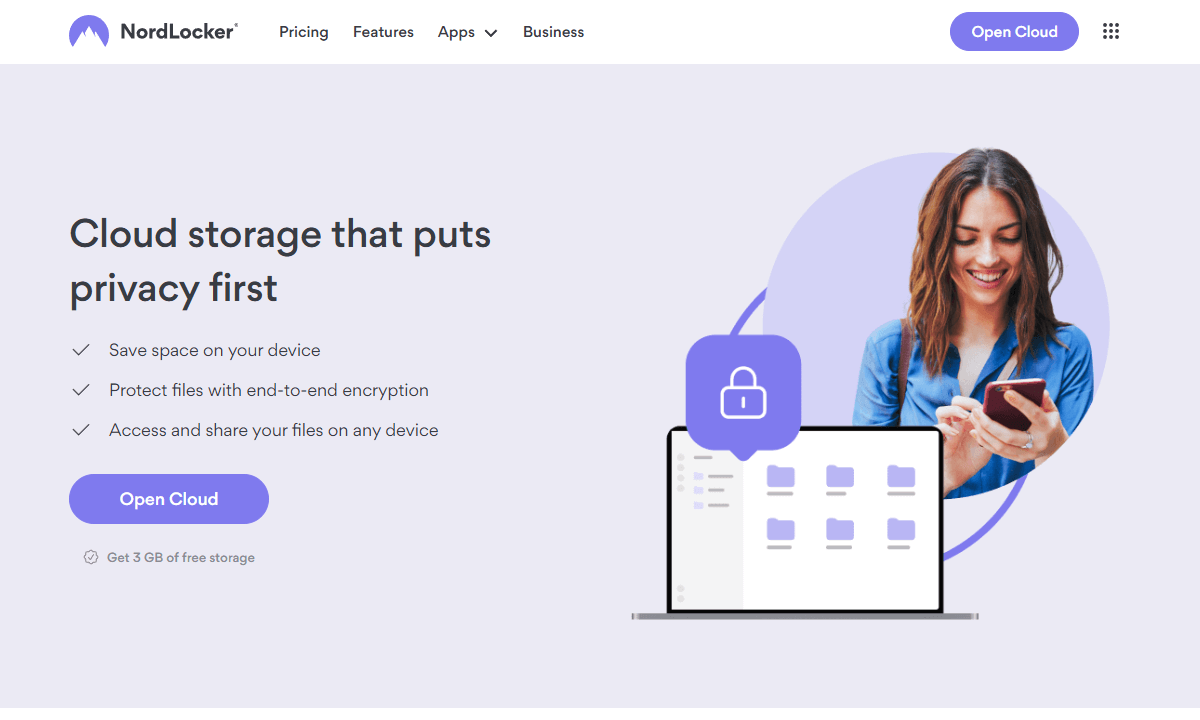
NordLocker is from the same folks who make NordVPN, and they clearly learned something about not overwhelming users with options. NordLocker comes with a clean, easy-to-navigate layout; just set up secure lockers, drop your files inside, then let the app take care of encryption plus online backup.
On a road trip, I encrypted 20GB of work documents before leaving. From my motel room, I accessed those files on my iPad without hassle. I could make edits without issue and see everything sync cleanly to my Mac back home. The whole experience was seamless, and if you want convenience, it’s definitely worth paying for.
NordLocker Pricing and Value
NordLocker has a free 3GB plan (which isn’t great for much more than testing). Paid plans start at $2.99 per month for 500GB or $6.99 per month for 2TB storage. In comparison to something like Dropbox Plus which doesn’t offer client-side encryption, it’s a secure and competitive alternative.
2. Encrypto — Best Free Encryption Software for Mac
Stats:
- Best price: Free
- Money-back guarantee: N/A
- Website: www.macpaw.com/encrypto
- Works on Mac & Windows
- Simple drag & drop interface
- Completely free, no feature limitations
- No longer actively maintained
- Can’t encrypt entire folders, only individual files
Best use case: Quick encryption on an individual file you need to share securely via email or cloud storage.
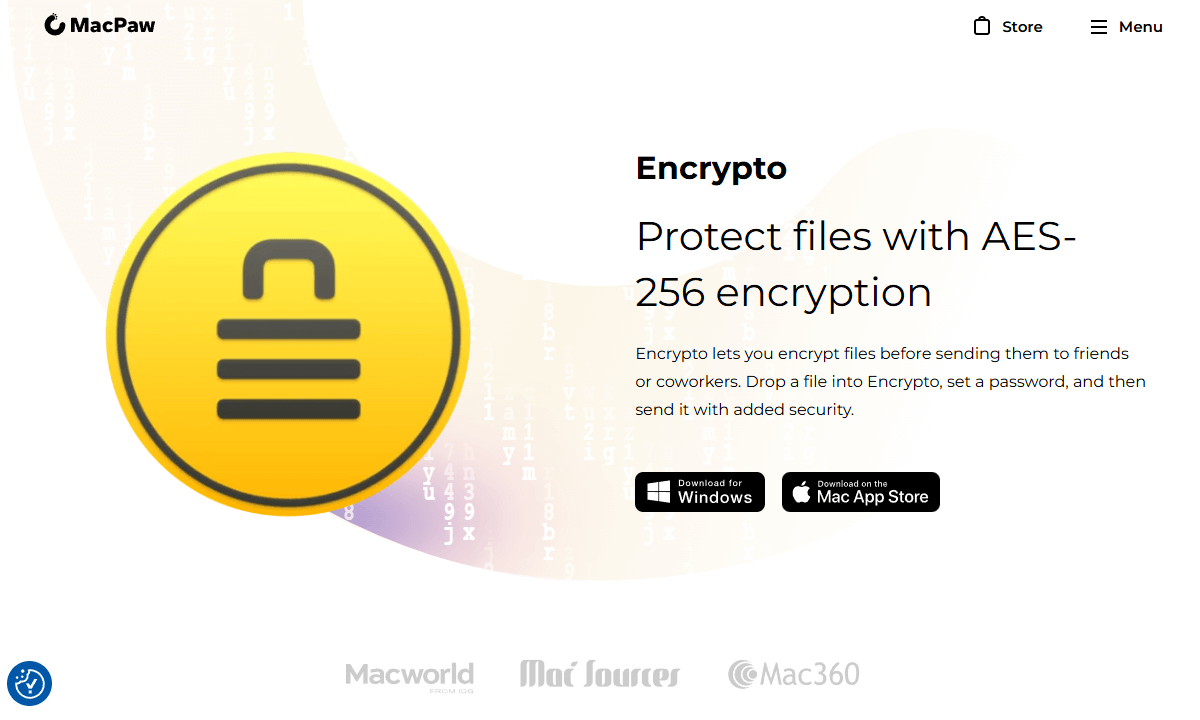
Encrypto is built for everyone, from beginners to advanced users. Just drag-and-drop a file inside, type a password, and you’re done; no setup, no logins, no hidden charges later. On my M1 MacBook Pro, encrypting a 2GB video took around 45 seconds and produced a slightly larger 2.1GB file, which was expected.
I particularly like the password hint option. It’s a small thing, but adding something like “Remember mom’s maiden name?” without sharing the actual password is a lifesaver (especially if you’re sharing files with less tech-savvy relatives). The only downside is that MacPaw stopped updating it, but the app runs perfectly fine as-is.
Encrypto Pricing and Value
It’s free. Like, actually free-free. No premium tier, no nagging popups, none of that “$9.99 to unlock advanced features” nonsense. You just download it and go. Honestly refreshing when every other app wants $120 per year.
3. VeraCrypt — Best Open-Source Encryption for Power Users
Stats:
- Best price: Free
- Money-back guarantee: N/A
- Website: www.veracrypt.io
- Open-source & audited
- Works on Mac, Windows & Linux
- Incredibly powerful with tons of options
- Interface looks like it’s from 1995
- Steep learning curve for beginners
Best use case: Encrypting entire external drives or creating secure containers for sensitive data that needs maximum security.
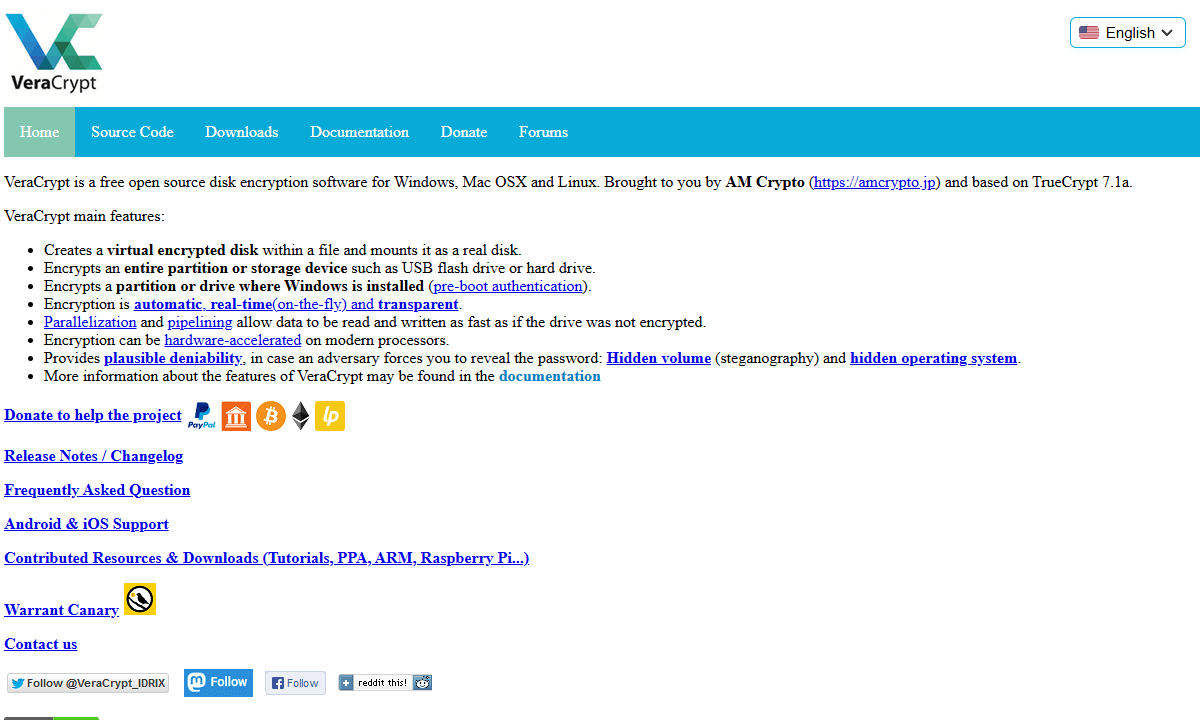
VeraCrypt is the Swiss army knife of encryption: it’s powerful, reliable, and loaded with features most people won’t touch. The interface looks like something from 1998, all nested dropdown menus inside other dropdown menus. Honestly, half the settings feel like they were designed for hackers in hoodies at 3am. But hey, if you need serious security? This is it.
When I wanted to encrypt a 500GB external drive, VeraCrypt was the tool I trusted. The initial encryption took hours, but I could still use the drive during the process. After it was completed, the drive was genuinely locked down. I had solid protection that relied solely on the strength of my chosen password.
VeraCrypt Pricing and Value
VeraCrypt is free and open-source, so anyone with the know-how can check it for vulnerabilities or make sure it lives up to its security claims. The software development is funded by donations, so you don’t ever become the product. For advanced users who need serious security, this is the gold standard.
4. Cryptomator — Best for Cloud Storage Encryption
Stats:
- Best price: Free (paid plans available for teams)
- Money-back guarantee: 14 days
- Website: www.cryptomator.org
- Works with any cloud provider
- Encrypts contents & file names
- Designed specifically for cloud storage
- Mobile apps aren’t free
- Slight performance overhead on large vaults
Best use case: Protecting sensitive files stored in cloud storage services like Google Drive and Dropbox.
If you keep anything important in the cloud, Cryptomator is the closest thing to real privacy you’re going to get. Yes, Google Drive and Dropbox use encryption at rest and in transit, but they keep the decryption codes themselves. Technically, this means they can access your files, as can governments with warrants, or rogue employees, or hackers who breach the system…you get my drift.
Cryptomator does things differently. Your files are encrypted on your device first, before ever going online, and only you have the key. To the cloud storage, your files look like random gibberish.
I created a Cryptomator vault inside my Google Drive, which holds around 50GB of family pictures. First-time encryption took about an hour; once finished, everything runs smoothly. I used Cryptomator’s vault interface to access files, and it handles the encryption and decryption in real-time. Performance-wise, you won’t notice a slowdown on modern Macs.
Cryptomator Pricing and Value
The desktop version is free for individuals who are self-hosting, but you’ll have to pay if you want more than read-only access on mobile apps. There are also paid plans for teams starting at $8 per user per month (minimum three users), if you need access to audit logs and email support.
5. AxCrypt — Best for Cross-Platform File Sharing
Stats:
- Best price: $3.92/month
- Money-back guarantee: None – 30-day free trial
- Website: www.axcrypt.net
- Easily integrates with Finder
- Encrypts files in cloud folders
- Good for sharing encrypted files with Windows
- Free version too limited to bother with
- Mac version isn’t as feature-rich as Windows
Best use case: Professionals who share encrypted files between Mac and Windows environments.
AxCrypt brings encryption to “regular people”; though that idea might seem a bit patronizing, using it feels natural. The standout feature is built-in access through Finder: just right-click any file, pick AxCrypt, and it’s encrypted. When you’re busy, being able to quickly encrypt data is key to not interrupting your workflow.
I send files to colleagues using Windows pretty regularly and AxCrypt’s been a game-changer. Instead of headaches, I just encrypt a PDF on my Mac, toss it into our shared folder, and they unlock it on their end with the same password. When I’m out and about, pulling up protected docs through the phone app feels smooth, though punching in a long password on a tiny screen still drives me nuts.
AxCrypt Pricing and Value
AxCrypt has a free version, but you can only view encrypted files with it – you can’t encrypt them yourself. For full access to all features, you’re looking at $3.92 per month for an annual plan, which is well worth the cost if you need cross-platform features. If you’re just encrypting your own files, it’s an expensive option.
6. GPG Suite — Best for Email and Document Signing
Stats:
- Best price: Free
- Money-back guarantee: N/A
- Website: www.gpgtools.org
- Free & open-source
- Full OpenPGP encryption
- Integrates with Apple Mail
- Setup is complex for beginners
- Requires some technical knowledge
Best use case: Email encryption and digital signatures for anyone who needs end-to-end encryption.
Let me be honest upfront: GPG Suite is not the kind of tool you casually install and figure out in five minutes. It’s made for users who know how symmetric and asymmetric encryption differ or don’t mind figuring it out. It runs on public-key crypto, so you have one key to share and one to guard closely. It’s elegant and secure, but it’s also been confusing regular people since the 1990s.
I mostly rely on GPG Suite for emails. Once past the annoying setup (making keys, sharing them online, then setting up Apple Mail) it runs well. During testing, I locked a private file and sent it to my own inbox via Gmail. Not even Google could peek inside. This is how solid end-to-end protection should work.
GPG Suite Pricing and Value
GPG Suite is free to use, but it asks for donations to ensure smooth operations and upkeep. If you really use it for your important communications, it’s worth supporting the developers. They’re maintaining complex software that Apple actively makes harder to support every time macOS updates.
7. Disk Utility — Best Built-In Mac Encryption Tool
Stats:
- Best price: Free
- Money-back guarantee: N/A
- Website: N/A (built-in)
- Reliable AES-256 encryption
- Already installed on your Mac
- Works well for external drives
- Limited customization options
- Only for Mac (encrypted drives unreadable on other platforms)
Best use case: Encrypting external hard drives or USB drives you’ll only use with Macs.
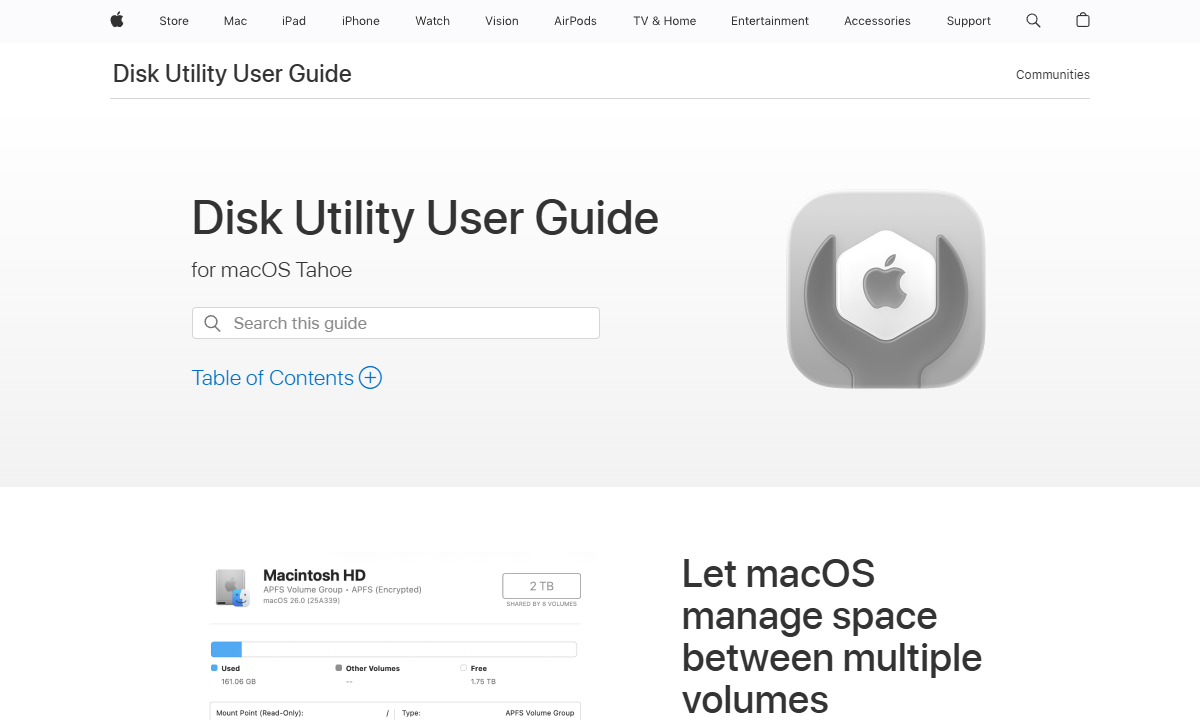
Sometimes the best tool is the one that’s already sitting on your Mac quietly doing its job. Disk Utility flies under the radar, yet quietly handles encryption without drama. The process is easy: connect a portable hard drive, fire up Disk Utility, pick that device, hit “Erase,” choose “Mac OS Extended (Journaled, Encrypted)” as the format and add a password. That’s it – your disk’s locked down securely.
I store a locked backup drive off-site and use Disk Utility to protect it. If I want to access anything on there, I just connect it to my Mac and enter the password. It’s really that simple. Unfortunately, it only works on Macs. If you want to use it on Windows, that’s too bad. This is why I mentioned VeraCrypt for cross-platform drives.
Disk Utility Pricing and Value
Disk Utility is already installed on your Mac when you purchase it, no extra costs necessary.
8. FileVault — Best for Full-Disk Encryption
Stats:
- Best price: Free
- Money-back guarantee: N/A
- Website: N/A (built-in)
- Low performance impact
- Protects against physical theft
- Auto encrypts everything on your Mac
- Only protects powered-off Macs
- If you forget your password, your data is gone
Best use case: Protecting the data on your Mac laptop, especially if you often work in public spaces or travel frequently.
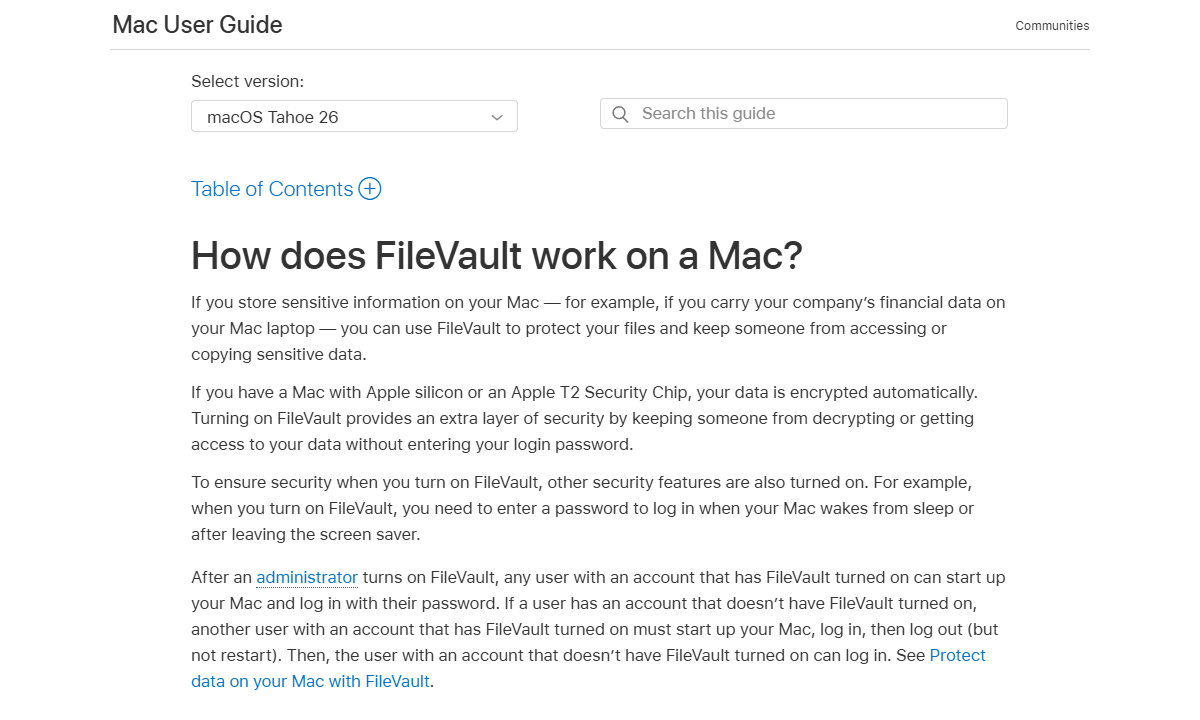
FileVault works like a backup plan if someone grabs your laptop at a café, encrypting everything on your main drive so only you can unlock it using your password. With Apple’s silicon Macs, this happens inside the Secure Enclave, barely slowing things down. You don’t notice it working in the background, but the protection is very real.
The scariest bit is the recovery key. macOS creates one when you enable FireVault, but if you misplace the recovery key along with your password, your files are gone for good. Apple pushes saving it to their servers, though users worried about privacy usually skip that option and opt to print it out and stash it securely.
I found out why that matters after locking myself out of a test MacBook by forgetting the password. One moment it worked fine, next thing I knew, it was just a very secure, very expensive paperweight.
FileVault Pricing and Value
FireVault is included with all Macs and is completely free to use. If you have a Mac laptop you regularly take out of the house, it’s worth enabling; the risk of theft is very real, and FireVault is a great defense.
How to Encrypt a Folder on Mac
Real talk: encrypting a folder on Mac isn’t immediately obvious, but it’s doable with Disk Utility. I’ll show you how in the following guide.
- Open Disk Utility
- Hit Cmd+Space to bring up Spotlight, then type “Disk Utility” and hit enter. (Or you can dig through Applications > Utilities if you’re feeling old school.)
- Create a New Disk Image
- Once you’re in Disk Utility, go to File at the top. Click “New Image” and then pick “Image from Folder” – yes, the naming is confusing. Now select whatever folder you want to lock down.
- Configure Encryption Settings
- In the save window, pick “128-bit AES encryption” or “256-bit AES encryption:” 256-bit is safer, though a bit slower. Choose “read/write” if you plan to edit or add files later.
- Set Your Password
- Enter a secure password when asked. That’s what protects your hidden files, so pick something complex. Skip saving it in your keychain for maximum security, but know it’ll be less convenient to access later.
- Save and Mount the Image
- Disk Utility creates a .dmg file. Tap it twice to load like a disk, type your password, then access your locked files. Once done, unplug the disk just like another storage unit. Your files stay encrypted inside the .dmg file.
- Delete the Original Folder (Optional)
- If you’d rather just have the locked copy, delete the original folder. Tap the folder with a right-click, press Option, then pick “Delete Immediately” so it skips the bin, then clear “Trash” too. You can also run “Secure Empty Trash” through Terminal to wipe it fully.
Top Encryption & Privacy Tips for Mac
Beyond just encrypting files, here are some practices that will improve your Mac security.
- Go with different passwords for each encrypted drive. Repeating passwords tanks your security. One leak could expose all of your accounts if your passwords are the same, so choose a unique and secure password.
- On older Intel Macs, turn on a firmware password. These devices let you boot from an external drive, skipping normal safeguards. Use Recovery Mode (hold Cmd+R) and add a password through Utilities.
- Keep your FileVault or VeraCrypt key on paper. Keep your key in a secure place, like a lockbox, not on devices you use daily. If your electronics act up, the hard copy gets you back in.
- Stay on top of encryption app upgrades. Programs like VeraCrypt or Cryptomater must be updated often so hackers can’t slip in. Yes, even when those alerts pop up at annoying times or need a reboot to finish.
Conclusion
Nordlocker is the best encryption software for Mac. Encrypto is good if you just want an easy way to keep your files secure, while VeraCrypt is an advanced tool for when security is paramount. And if your data lives in the cloud, Cryptomator is the extra layer of protection most people don’t realize they need.
I’m always curious what other Mac users rely on. Have you ever locked yourself out because you forgot a password, or found a tool I didn’t test here? Let me know in the comments. I’d love to hear what’s worked (or failed spectacularly) for you.
FAQ: Mac File Encryption Software
Is FileVault on Mac Risky to Use?
FileVault on Mac isn’t risky to use. The actual risk is forgetting your password and the recovery key. If that happens, you can say “so long” to your data. When you enable FileVault, make sure the recovery key is stored somewhere safe, like a lockbox or password manager.What Is the Alternative to VeraCrypt for Mac?
Cryptomator is a great alternative for VeraCrypt for Mac if you need to encrypt cloud files, and Disk Utility works well for external drives. If you just want full-disk encryption, you can enable FileVault.How Do I Encrypt My Mac?
You can encrypt your Mac by opening System Settings > Privacy & Security > FileVault and turn it on – this will encrypt your entire Mac. If you want to encrypt specific files or folders, create an encrypted disk image in Disk Utility. For external drives, right-click the drive in Finder and choose “Encrypt.”
Leave a Reply